
Optimise and minify SVG files on Mac
Strip editor leftovers from Figma, Illustrator and Inkscape SVGs and round coordinates — smaller files that look the same.
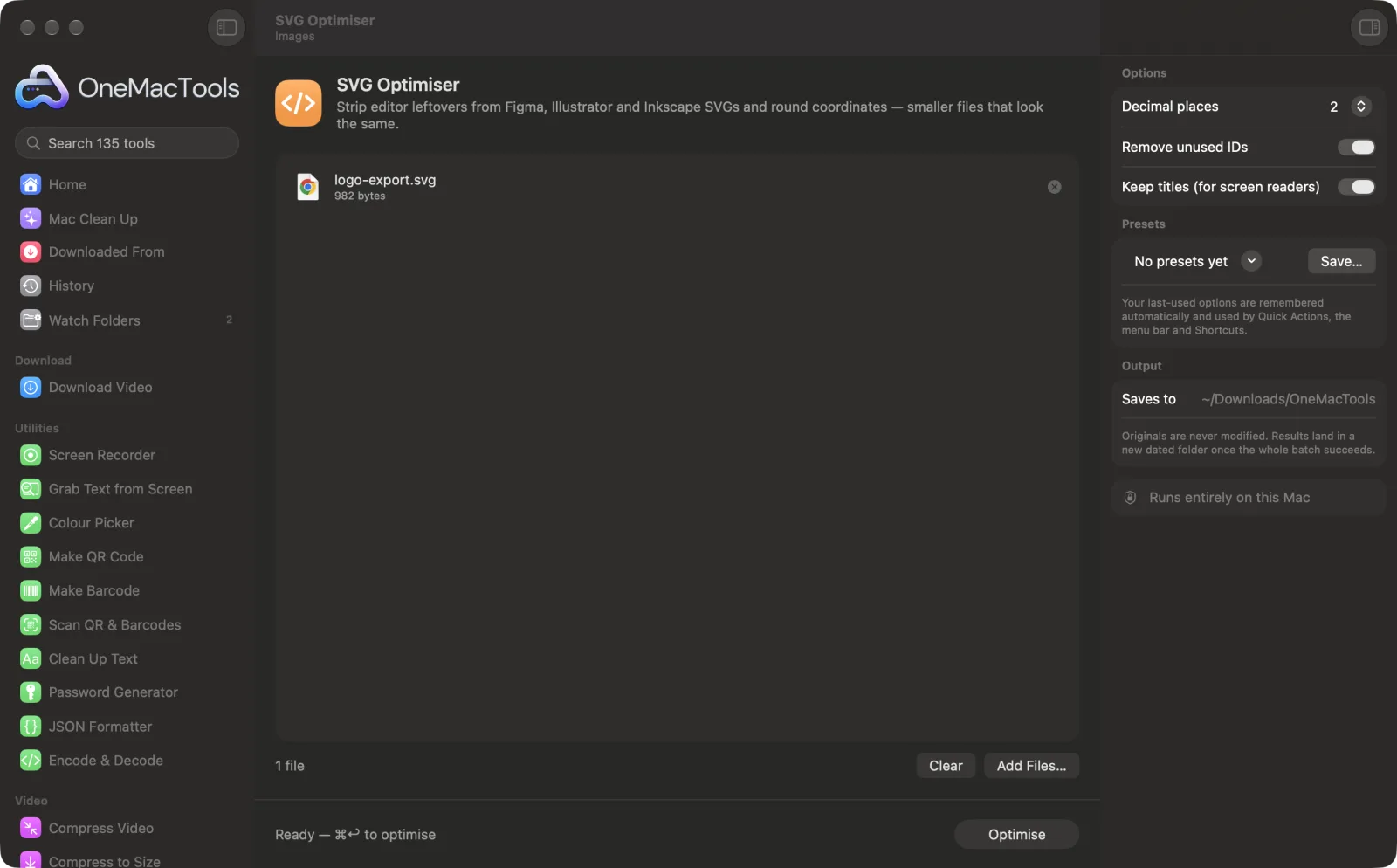
SVG Optimiser on a Mac
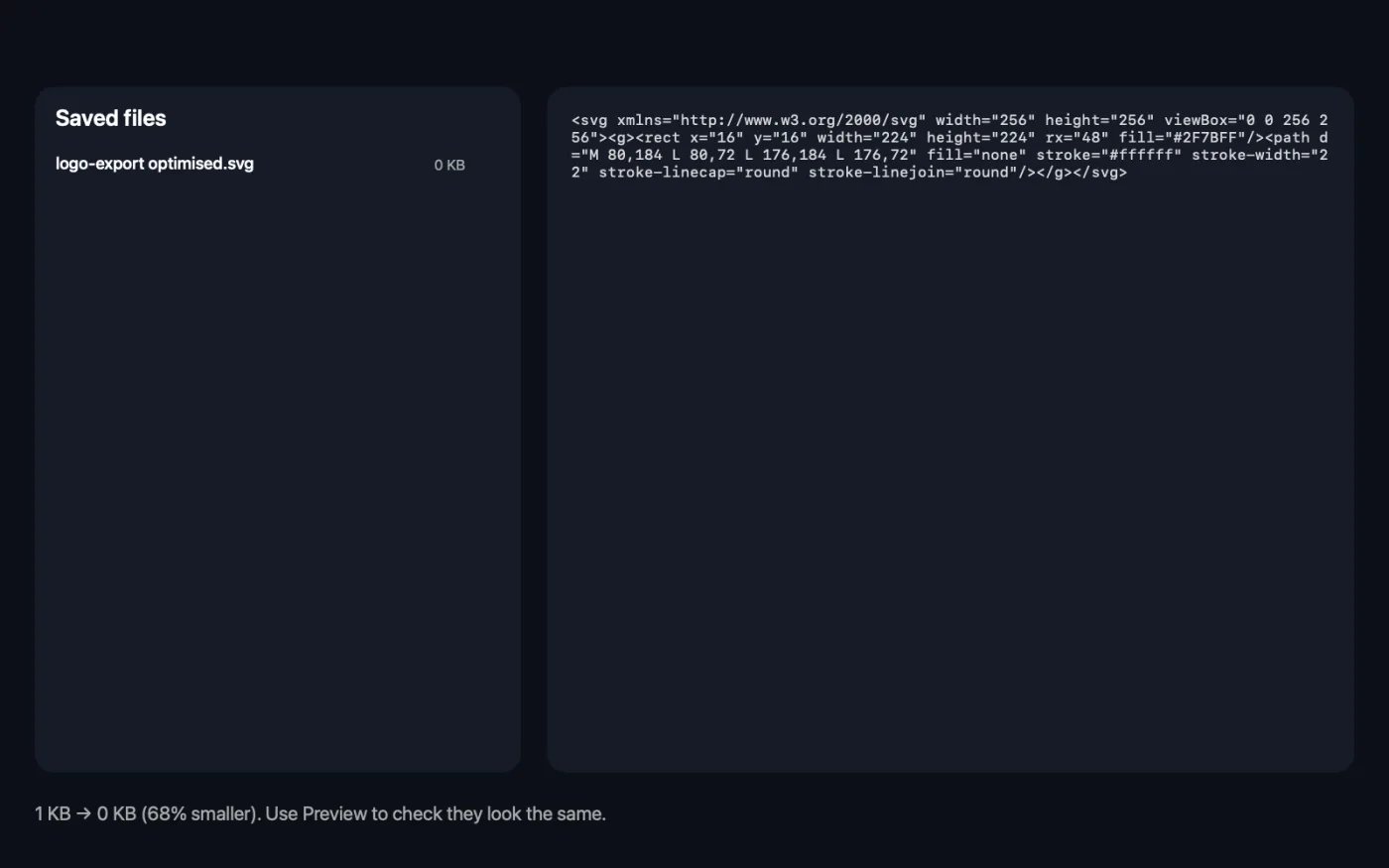
Screenshots from the app, using sample files.
How to use SVG Optimiser
- 1
Drop your SVGs
Add SVG files exported from Figma, Illustrator, Inkscape or Sketch, one or many.
- 2
Choose the precision
Two decimal places suits most icons and illustrations.
- 3
Decide on IDs and titles
Remove unused IDs, and keep titles if the SVG should be described to screen readers.
- 4
Click Optimise
Comments, metadata and editor leftovers are removed and numbers are rounded. The app shows the total size before and after.
- 5
Compare them
Optimised copies, named with “optimised”, are saved in a dated folder in Downloads › OneMacTools. Use the Preview (eye) button to check they look the same.
What SVG Optimiser does
Removes comments, metadata, editor-only elements and attributes, empty groups, unused IDs and needless decimal places, while leaving the shapes untouched. Choose 1, 2 or 3 decimal places and whether to keep titles for screen readers, then use Preview to compare.
Great for
- Shrink icons before shipping a website
- Clean up exported illustrations
- Make SVGs easier to read in code
Options explained
- Decimal places
- 1, 2 or 3; the default is 2. Numbers in shapes, positions and sizes are rounded to this many places. Use 3 for tiny or very detailed artwork, 1 for large, simple shapes.
- Remove unused IDs
- On by default. Removes id attributes that nothing in the file points to. Turn it off if your CSS or JavaScript targets elements by ID.
- Keep titles (for screen readers)
- On by default. Keeps <title> and <desc> elements, which screen readers use to describe the image. Turn it off for purely decorative SVGs.
Best practices
- Check small icons at 2 or 3 decimal places. Rounding to 1 place can shift fine details on a 16 or 24 px icon.
- Turn off Remove unused IDs for SVGs you animate or style by ID, or that use aria-labelledby to point at a title.
- Keep titles on for meaningful images like charts and diagrams, so they stay accessible.
- Optimise before inlining SVGs in HTML or converting them with Image to Base64; every byte saved is saved on every page load.
- Keep your original export. The optimised file is for shipping, not for editing again in a design app.
Works with
- In
- SVG files.
- Out
- An optimised SVG named with “optimised” added.
- Removes comments, metadata, editor-only elements and attributes (from Inkscape, Sketch, Illustrator, Figma and others), empty groups and the XML declaration.
- Files that aren't valid SVG are reported instead of changed.
Questions about SVG Optimiser
How do I reduce the size of an SVG file?
Drop it onto SVG Optimiser and click Optimise. Editor leftovers, comments and metadata are removed and long decimals are rounded, so the file gets smaller without changing how it looks.
Will optimising change how my SVG looks?
It shouldn't. Shapes are left in place and numbers are only rounded to the decimal places you choose. Compare with the Preview button, and use 3 places for very small, detailed icons.
Why are SVGs from Figma or Illustrator so large?
Design apps add metadata, editor-specific attributes and numbers with many decimal places that browsers don't need. Removing them often makes a noticeable difference.
What are unused IDs?
id attributes that nothing in the file refers to, often left over from layer names. They're safe to remove unless your own CSS or JavaScript uses them.
Should I keep the title in an SVG?
Yes, if the image means something, such as an icon button or a diagram, so screen readers can describe it. For purely decorative images you can remove it.
Can I optimise many SVGs at once?
Yes. Drop a whole icon set and each file gets its own optimised copy.
Does SVG Optimiser upload my files?
No. SVG Optimiser runs entirely on your Mac, so your files never leave it and it works offline.
Will SVG Optimiser change my original files?
No. Results are saved as new files in a dated folder in Downloads › OneMacTools, and your originals are left exactly as they were unless you turn on an option that says otherwise.
What does SVG Optimiser need?
Just a Mac with macOS 26 or later. There's nothing else to install.
Do this next
Turn images into Base64 data URIs, ready to paste into HTML, CSS or JSON.
Sprite Sheet GeneratorPack icons into one image with the CSS to show each one, plus an HTML preview.
Related Images tools
Convert between PNG, JPEG, HEIC, AVIF and TIFF. Reads WebP, RAW and more.
Compress ImagesShrink photos for email and the web, with a live before-and-after preview.
Convert to WebPMake small, web-ready WebP images, lossy or lossless, with transparency kept.
Resize ImagesResize by longest edge, exact pixels, percentage, or print size in cm, mm or inches at the DPI you need.
Crop ImagesCrop to an aspect ratio or an exact area, or trim plain borders automatically — one photo or a whole folder.
Rotate & Flip ImagesTurn or mirror photos in one go.

SVG Optimiser, plus 134 more.
One app. One price.
All 135 tools for $29, once. 14-day money-back guarantee.