
Break reminders and 20-20-20 eye rest for Mac
Gentle reminders to rest your eyes (20-20-20), stand up and drink water. They wait while you're on a call.
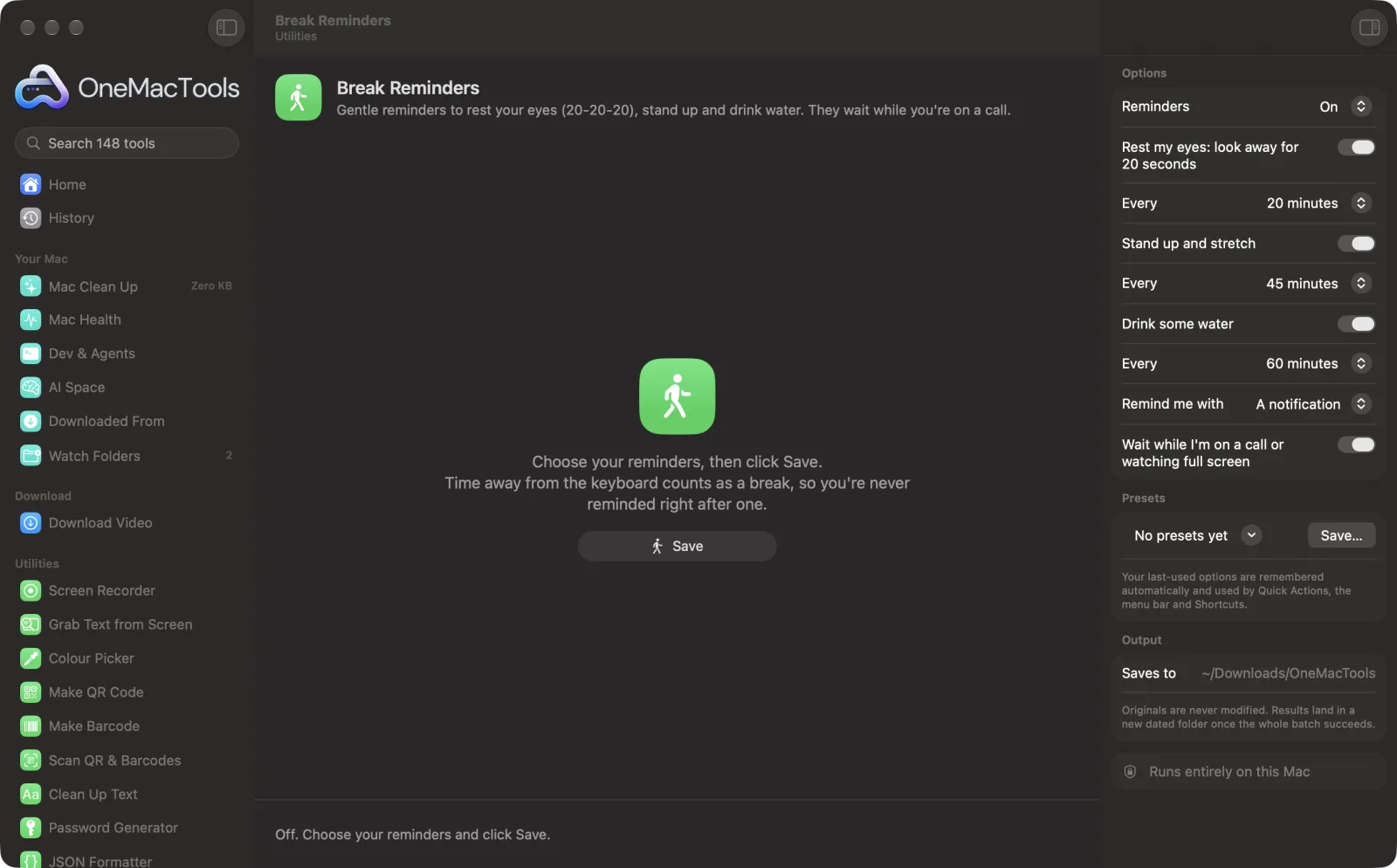
Break Reminders on a Mac
Screenshots from the app, using sample files.
How to use Break Reminders
- 1
Choose your reminders
Rest your eyes, stand up and drink water, each on or off.
- 2
Set how often
Eyes every 20 minutes by default, standing every 45, water every hour.
- 3
Choose how to be reminded
A notification, or a full-screen break with a countdown.
- 4
Click Save
Reminders run in the background, even with the window closed, until you turn them off.
What Break Reminders does
Every 20 minutes, look at something 6 metres away for 20 seconds; every 45, stand up; every hour, some water. Reminders come as a notification or a calm full-screen break with a countdown that Esc skips. Time away from the keyboard and a locked screen count as a break, and reminders wait while an app is using the microphone or something is playing full screen. It checks every 30 seconds and costs nothing you'd notice.
Great for
- Ease eye strain on long coding or writing days
- Remember to stand between meetings
- Drink enough water without an app on your phone
Options explained
- Reminders
- On or Off for all of them.
- Rest my eyes
- Look at something about 6 metres (20 feet) away for 20 seconds: the 20-20-20 rule.
- Every (eyes)
- 20, 30 or 45 minutes.
- Stand up and stretch
- A minute on your feet.
- Every (standing)
- 30, 45, 60 or 90 minutes.
- Drink some water
- Off to start; always a notification.
- Every (water)
- 30, 45, 60 or 90 minutes.
- Remind me with
- A notification, or a full-screen break on every display that counts down and ends by itself. Esc or Skip ends it early.
- Wait while I'm on a call or watching full screen
- Holds reminders while an app is using the microphone or something fills the screen, and reminds you right after.
Best practices
- Five minutes away from the keyboard, or a locked screen, counts as a break, so you're never reminded just after one.
- Try the full-screen break for eyes: it's easier to actually look away when the screen does too.
- Allow notifications for OneMacTools the first time it asks, or reminders can't appear.
- Turn on Focus modes as usual: notifications follow your Focus settings.
- Set standing to 45 or 60 minutes rather than 30 on busy days, so it doesn't feel like nagging.
Works with
- In
- Nothing: choose your reminders and click Save.
- Out
- Notifications or full-screen breaks at the times you chose.
- Checks every 30 seconds, reading only how long you've been idle; it uses no CPU you'd notice.
- Carries on after a restart of OneMacTools.
Questions about Break Reminders
What is the 20-20-20 rule?
Every 20 minutes, look at something 20 feet (about 6 metres) away for 20 seconds. It relaxes the eye muscles that tire from focusing on a screen.
Will it interrupt my video calls?
No. With Wait while I'm on a call turned on, reminders hold while any app is using the microphone, and come once the call ends.
Does it remind me right after I've been away?
No. Five minutes without touching the keyboard or trackpad, or a locked screen, counts as a break and restarts the eye and standing timers.
Can I skip a full-screen break?
Yes. Press Esc or click Skip. It never locks the Mac.
Does it slow my Mac down?
No. It checks once every 30 seconds how long you've been idle, which takes a fraction of a millisecond.
How do I turn the reminders off?
Set Reminders to Off and click Save.
Does Break Reminders upload my files?
No. Break Reminders runs entirely on your Mac, so your files never leave it and it works offline.
Will Break Reminders change my original files?
No. Results are saved as new files in a dated folder in Downloads › OneMacTools, and your originals are left exactly as they were unless you turn on an option that says otherwise.
What does Break Reminders need?
Just a Mac with macOS 26 or later. There's nothing else to install.
Do this next
Stop your Mac sleeping for an hour, until a time, or until you turn it off.
Camera CheckA quick mirror before a call: see how you look and how the light falls. The camera is on only while it's open.
Clean KeyboardLock the keyboard (and trackpad) so you can wipe it clean. Esc five times unlocks.
Related Utilities tools
Record a window, an app or the whole screen, with sound, as MP4 or GIF.
Grab Text from ScreenDrag over anything on screen — a video, a photo, a locked PDF — and copy the text in it.
Colour PickerPick any pixel on screen and copy its colour as HEX, RGB, HSL or code.
Make QR CodeTurn a link, some text or Wi-Fi details into a crisp QR code.
Make BarcodeMake Code 128, EAN-13, UPC-A, PDF417 and Aztec barcodes for labels, products and tickets.
Scan QR & BarcodesRead QR codes and barcodes from photos, screenshots and PDFs.

Break Reminders, plus 144 more.
One app. One price.
All 145 tools. Free download, one payment for a licence. 14-day money-back guarantee.