
Turn a website into a scrolling video on Mac
Record any web page scrolling smoothly from top to bottom as an MP4, at desktop or phone size.
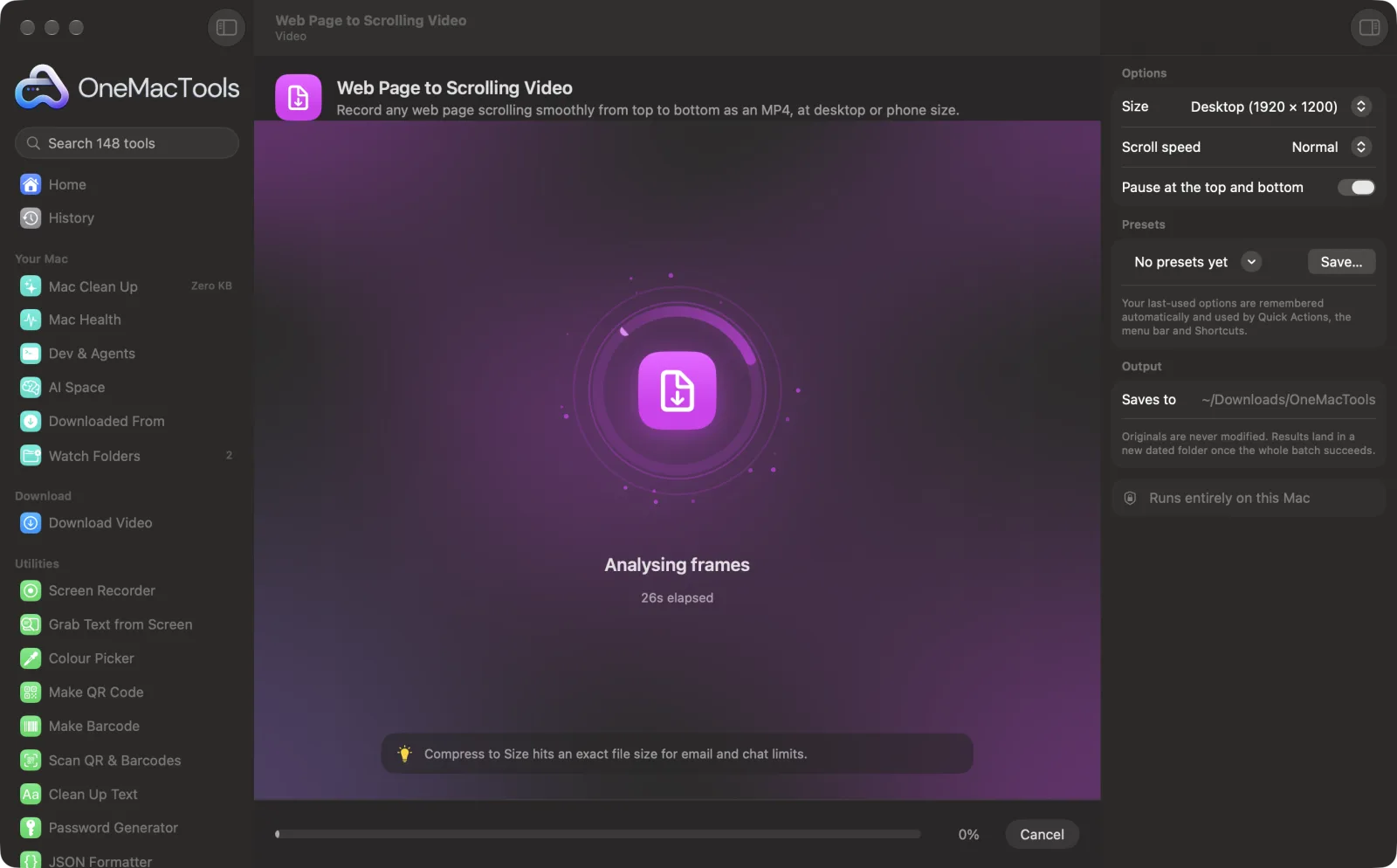
Web Page to Scrolling Video on a Mac
Screenshots from the app, using sample files.
How to use Web Page to Scrolling Video
- 1
Paste a link
Any public web page, starting with https://.
- 2
Choose the size
Desktop (1920 × 1200), Phone (the page's mobile layout) or Square for social posts.
- 3
Choose the speed
Normal suits most pages; Slow for reading along, Fast for long pages.
- 4
Click Record
The page loads out of sight, pictures load, and it's recorded scrolling top to bottom.
- 5
Find the MP4
It's named after the page's title, in your OneMacTools folder.
What Web Page to Scrolling Video does
Paste a link and OneMacTools loads the page out of sight, lets pictures load, then records it scrolling smoothly from top to bottom with an easy start and stop, as a sharp MP4. Choose desktop (1920 × 1200), phone (the page's mobile layout) or square for social posts, and how fast it scrolls; long pages speed up so the video stays under a minute and a half. Nothing on your screen is recorded.
Great for
- Show off a portfolio or landing page on social media
- Add a website walkthrough to a pitch deck
- Record a client's site for a review
Options explained
- Size
- Desktop (1920 × 1200) records the full desktop layout; Phone (780 × 1688) loads the site as an iPhone would, for its mobile layout; Square (1080 × 1080) suits social feeds.
- Scroll speed
- Slow (160 points a second), Normal (320) or Fast (640). Very long pages scroll faster so the video stays under 90 seconds.
- Pause at the top and bottom
- Holds still for a second and a half at each end, so viewers see the first screen before it moves.
Best practices
- Pages behind a login can't be recorded: it opens the page fresh, like a private window.
- Cookie banners can't be clicked away, so they show in the video; pick a page without a big one where you can.
- Phone size looks best on Instagram and TikTok; desktop for YouTube and pitch decks.
- Trim the result with Trim Video or turn it into a GIF with Video to GIF.
- Nothing on your screen is recorded, so you can keep working while it runs.
Works with
- In
- A link to a public web page.
- Out
- An MP4 (H.264, 30 frames a second) at the size you chose.
- Needs an internet connection.
- Pages longer than about 60,000 points are recorded down to that point.
Questions about Web Page to Scrolling Video
How do I make a scrolling video of a website on a Mac?
Paste the link into Web Page to Scrolling Video, choose a size and speed, and click Record. You get a smooth top-to-bottom MP4.
Can I record the mobile version of a site?
Yes. Choose Phone and the site is loaded as an iPhone would load it, so you get its mobile layout.
Does it record my screen?
No. The page is loaded out of sight and recorded directly, so your windows, notifications and pointer never appear.
How long will the video be?
It depends on the page's length and speed. A typical landing page at Normal speed takes 15 to 30 seconds; very long pages are capped at about 90 seconds.
Can it record pages I'm signed in to?
No. It opens the page fresh without your cookies, so only public pages work.
Why do some animations look different?
Animations that start as you scroll may show their starting state, since the page is moved in steps rather than by a hand on a trackpad.
Does Web Page to Scrolling Video upload my files?
Web Page to Scrolling Video only connects to the address you give it. Everything else happens on your Mac, and nothing you process is sent to us.
Will Web Page to Scrolling Video change my original files?
No. Results are saved as new files in a dated folder in Downloads › OneMacTools, and your originals are left exactly as they were unless you turn on an option that says otherwise.
What does Web Page to Scrolling Video need?
Just a Mac with macOS 26 or later. There's nothing else to install.
Do this next
Keep just the part you need.
Video to GIFMake a crisp, looping GIF with an optimised palette.
Compress VideoMake videos much smaller while keeping them sharp.
Related Video tools
Hit a file-size limit for email, Discord or WhatsApp. Pick the size, not the quality.
Convert VideoTurn any video into MP4, MOV, WebM or MKV.
Resize VideoScale videos to a standard resolution.
Crop VideoCentre-crop to square, vertical or widescreen for any platform.
Rotate & Flip VideoFix sideways phone clips or mirror a video.
Change SpeedSpeed up or slow down, with the audio pitch kept natural.

Web Page to Scrolling Video, plus 144 more.
One app. One price.
All 145 tools. Free download, one payment for a licence. 14-day money-back guarantee.