
Make Open Graph and social preview images on Mac
Make the 1200 × 630 card that shows when your link is shared on X, LinkedIn, Slack, WhatsApp and iMessage.
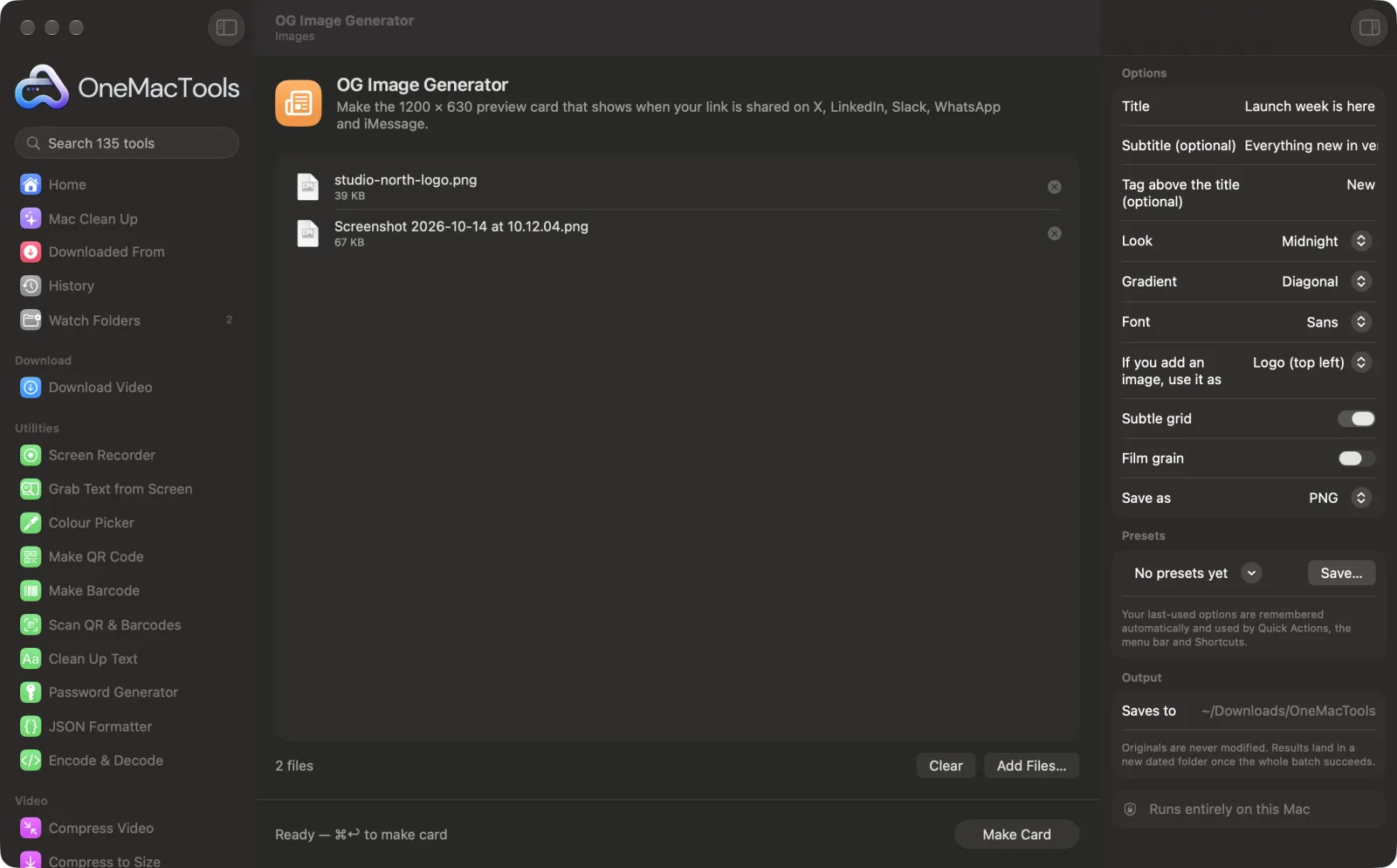
OG Image Generator on a Mac
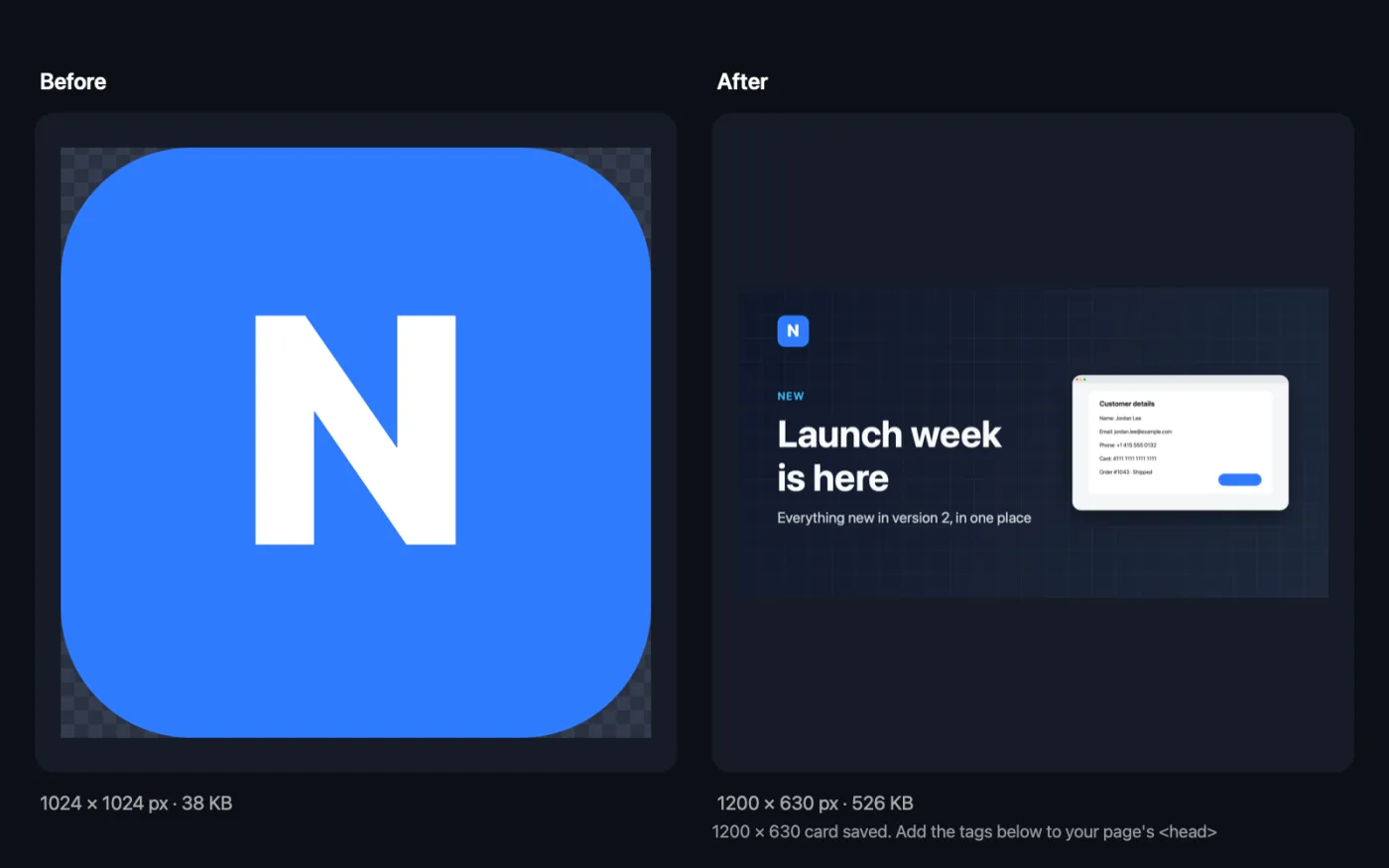
Screenshots from the app, using sample files.
How to use OG Image Generator
- 1
Type your title
This is the only thing you need. Add a subtitle and a short tag above the title if you like. No files are needed.
- 2
Pick a look
Choose a colour template or your own two colours, the gradient direction and a font, and add a subtle grid or film grain if you want texture.
- 3
Add an image if you like
Drop a logo, a product shot or a background photo, and choose how the first image is used.
- 4
Click Make Card
A 1200 × 630 card is saved in a dated folder in Downloads › OneMacTools, and the meta tags to paste are shown in the app.
- 5
Add it to your page
Upload the image to your site and paste the tags into your page's <head>, with your image's real address.
What OG Image Generator does
Type a title, with an optional tag and subtitle, pick a look or your own colours, a gradient direction and a font, and add an optional grid or film grain. Add a logo, a product shot that floats as a card on the right, or a background photo. Long titles shrink to fit. You also get the meta tags to paste into your page.
Great for
- Give blog posts a proper share image
- Announce a product launch
- Make link previews look professional
Options explained
- Title
- Required. The main headline. Long titles shrink to fit and wrap onto several lines.
- Subtitle (optional)
- A smaller line under the title, such as a one-sentence description.
- Tag above the title (optional)
- A short label in capitals above the title, such as NEW or GUIDE, in the template's accent colour.
- Look
- Midnight, Ocean, Sunset, Forest, Grape, Paper, Corporate or Custom colours. Each template sets the background, text and accent colours.
- Colours (two hex values)
- Only shown when Look is Custom colours. Two hex values such as #0F172A, #2563EB for the start and end of the gradient. The text turns dark or light automatically to suit the first colour.
- Gradient
- Diagonal, Left to right, Top to bottom or Solid. Solid uses the first colour only.
- Font
- Sans, Serif, Rounded or Mono, all versions of the Mac's system font.
- If you add an image, use it as
- Logo (top left), Product shot (card on the right) or Background photo. Applies to the first image you drop. A background photo is darkened so white text stays readable. A second image is always used as a product shot.
- Subtle grid
- Off by default. Adds a faint grid over the background.
- Film grain
- Off by default. Adds fine grain for a softer, printed feel.
- Save as
- PNG or JPEG. PNG keeps text and flat colours crisp; JPEG is smaller when you use a background photo.
Best practices
- Keep the title short, around 6 to 10 words. Previews are often shown small, and fewer words stay bigger and readable.
- Leave the key words away from the very edges. Some apps crop previews slightly.
- Use a logo with a transparent background so it sits cleanly on the gradient.
- Make one card per page or post with the same look, so shared links feel like a set.
- After publishing, test the link in a debugger or by pasting it into a chat, since apps cache previews.
Works with
- In
- No files needed. Optionally a logo, a product shot or a background photo (up to two images).
- Out
- A 1200 × 630 PNG or JPEG named “og-” followed by your title, plus the og:image and Twitter card meta tags shown in the app.
- The meta tags use a placeholder address; replace it with where you upload the image.
Questions about OG Image Generator
What size should an Open Graph image be?
1200 × 630 pixels is the widely used size for link previews, and it's what OG Image Generator makes.
How do I make a link preview image without design software?
Open OG Image Generator, type a title, pick a look and click Make Card. You don't need to add any files.
How do I add the OG image to my website?
Upload the image to your site, then paste the meta tags shown in the app into your page's <head>, replacing the example address with your image's real address.
Can I use my own brand colours?
Yes. Choose Custom colours and type two hex values. The text colour switches between dark and light to suit them.
Can I put my logo or a screenshot on the card?
Yes. Drop it in and choose Logo (top left) or Product shot (card on the right). Add a second image to have a logo and a product shot together.
Why doesn't my new image show when I share the link?
Apps cache link previews. Check the tags are in the page's <head> and the image address works, then use the platform's preview or debugging tool to refresh it.
Does OG Image Generator upload my files?
No. OG Image Generator runs entirely on your Mac, so your files never leave it and it works offline.
Will OG Image Generator change my original files?
No. Results are saved as new files in a dated folder in Downloads › OneMacTools, and your originals are left exactly as they were unless you turn on an option that says otherwise.
What does OG Image Generator need?
Just a Mac with macOS 26 or later. There's nothing else to install.
Do this next
Every favicon a website needs, plus the web manifest and the HTML to paste into your page.
Compress PNGShrink PNGs by 60–80% by reducing colours, keeping transparency — ideal for screenshots, logos and icons.
Related Images tools
Convert between PNG, JPEG, HEIC, AVIF and TIFF. Reads WebP, RAW and more.
Compress ImagesShrink photos for email and the web, with a live before-and-after preview.
Convert to WebPMake small, web-ready WebP images, lossy or lossless, with transparency kept.
Resize ImagesResize by longest edge, exact pixels, percentage, or print size in cm, mm or inches at the DPI you need.
Crop ImagesCrop to an aspect ratio or an exact area, or trim plain borders automatically — one photo or a whole folder.
Rotate & Flip ImagesTurn or mirror photos in one go.

OG Image Generator, plus 134 more.
One app. One price.
All 135 tools for $29, once. 14-day money-back guarantee.