
Fix washed out iPhone HDR videos on Mac
Make iPhone HDR and Dolby Vision videos look right everywhere: converts them to standard colour (SDR).
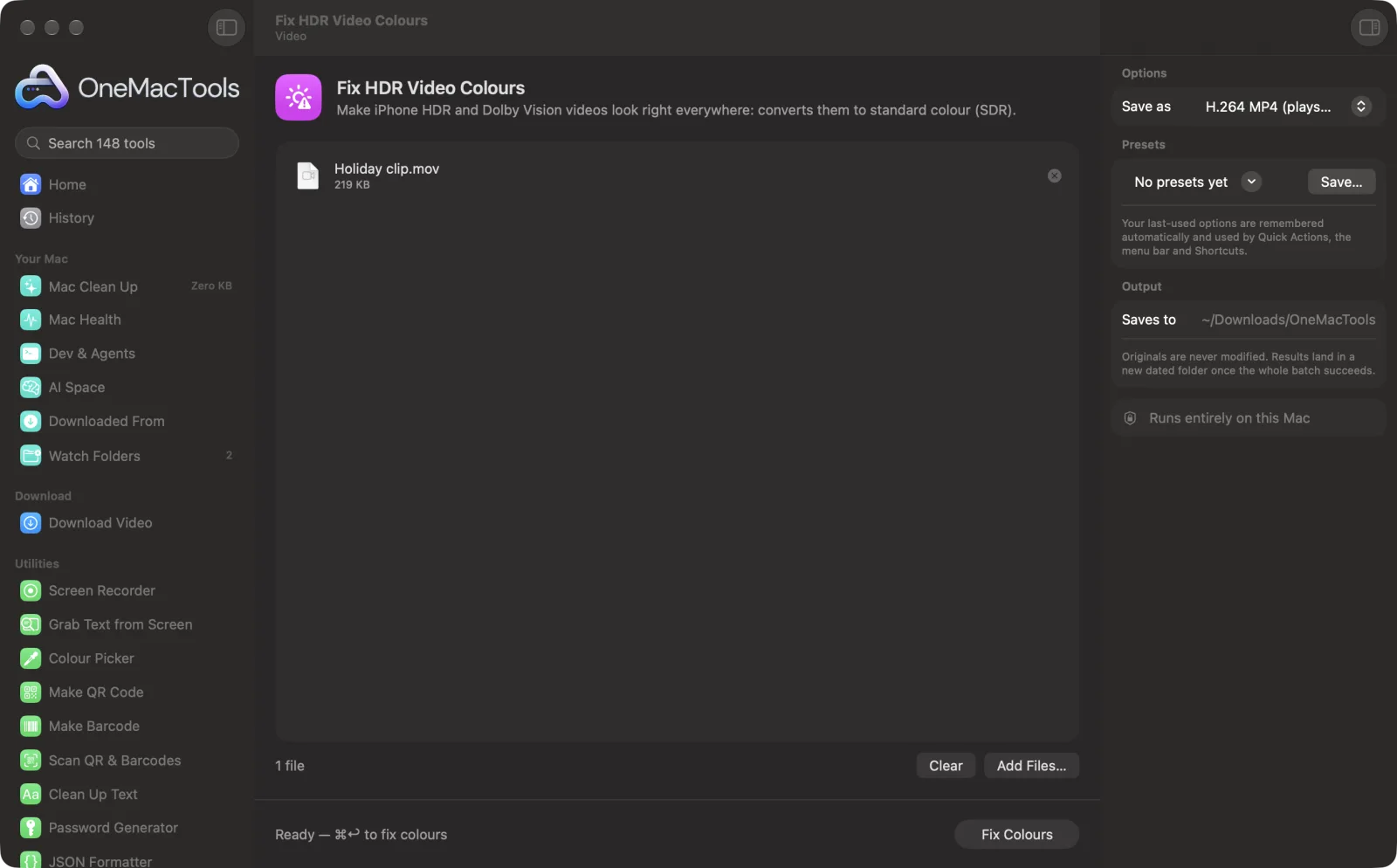
Fix HDR Video Colours on a Mac
Screenshots from the app, using sample files.
How to use Fix HDR Video Colours
- 1
Drop your videos
iPhone videos recorded in HDR (Dolby Vision or HLG), or any HDR clip.
- 2
Choose the format
H.264 plays everywhere; HEVC makes smaller files for newer devices.
- 3
Click Fix Colours
Each video gets a standard-colour copy named with SDR at the end.
- 4
Share the SDR copy
Upload or send it; it looks the same on every screen.
What Fix HDR Video Colours does
iPhones record HDR video (Dolby Vision or HLG) that looks washed out, grey or blown out once it's uploaded, sent to a Windows PC or opened on a screen without HDR. This makes a standard-colour (SDR, BT.709) copy with Apple's own tone mapping, so it looks as you saw it on the phone. Videos already in standard colour are skipped, and no extra download is needed.
Great for
- Upload iPhone clips to a site that shows them washed out
- Send a video to someone on Windows or Android
- Edit HDR clips in an app that only handles SDR
Options explained
- Save as
- H.264 MP4 (plays everywhere, including older Windows PCs and websites) or HEVC MP4 (about half the size, for recent phones and Macs).
Best practices
- Videos that are already in standard colour are skipped, so you can drop a whole folder.
- Keep the original HDR file: it looks better on HDR screens like recent iPhones and MacBook Pros.
- To stop recording HDR in the first place, turn off Settings › Camera › Record Video › HDR Video on your iPhone.
- If the copy is too big to send, run Compress Video on it afterwards.
Works with
- In
- Videos: MOV, MP4 and M4V, typically from iPhone.
- Out
- MP4 files in standard colour (SDR, BT.709), with the sound kept.
- Uses Apple's own tone mapping; no extra download needed.
- Videos that aren't HDR are skipped and named in the result.
Questions about Fix HDR Video Colours
Why do my iPhone videos look washed out when I upload them?
iPhones record HDR video by default. Many sites, apps and screens don't show HDR, so the video looks grey, faded or too bright. Converting it to standard colour (SDR) fixes that.
How do I convert Dolby Vision to SDR on a Mac?
Drop the video into Fix HDR Video Colours and click Fix Colours. You get an SDR MP4 that looks right everywhere.
Will it look worse on my iPhone?
A little less bright on HDR screens, since highlights are brought into standard range. Keep the original for watching on HDR screens.
How do I know if a video is HDR?
On iPhone, HDR videos show an HDR badge in Photos. Fix HDR Video Colours also tells you when a video is already in standard colour.
Is the video quality reduced?
It's re-encoded at high quality. Choose H.264 for the widest support or HEVC for smaller files.
Is my video uploaded?
No. It's converted on your Mac.
Does Fix HDR Video Colours upload my files?
No. Fix HDR Video Colours runs entirely on your Mac, so your files never leave it and it works offline.
Will Fix HDR Video Colours change my original files?
No. Results are saved as new files in a dated folder in Downloads › OneMacTools, and your originals are left exactly as they were unless you turn on an option that says otherwise.
What does Fix HDR Video Colours need?
Just a Mac with macOS 26 or later. There's nothing else to install.
Do this next
Make videos much smaller while keeping them sharp.
Convert VideoTurn any video into MP4, MOV, WebM or MKV.
Trim VideoKeep just the part you need.
Related Video tools
Hit a file-size limit for email, Discord or WhatsApp. Pick the size, not the quality.
Resize VideoScale videos to a standard resolution.
Crop VideoCentre-crop to square, vertical or widescreen for any platform.
Rotate & Flip VideoFix sideways phone clips or mirror a video.
Change SpeedSpeed up or slow down, with the audio pitch kept natural.
Mute VideoRemove the soundtrack without re-encoding the picture.

Fix HDR Video Colours, plus 144 more.
One app. One price.
All 145 tools. Free download, one payment for a licence. 14-day money-back guarantee.