
Put a screenshot in a Mac or iPhone frame
Put screenshots in a Mac, iPhone, iPad or browser frame on a clean background.
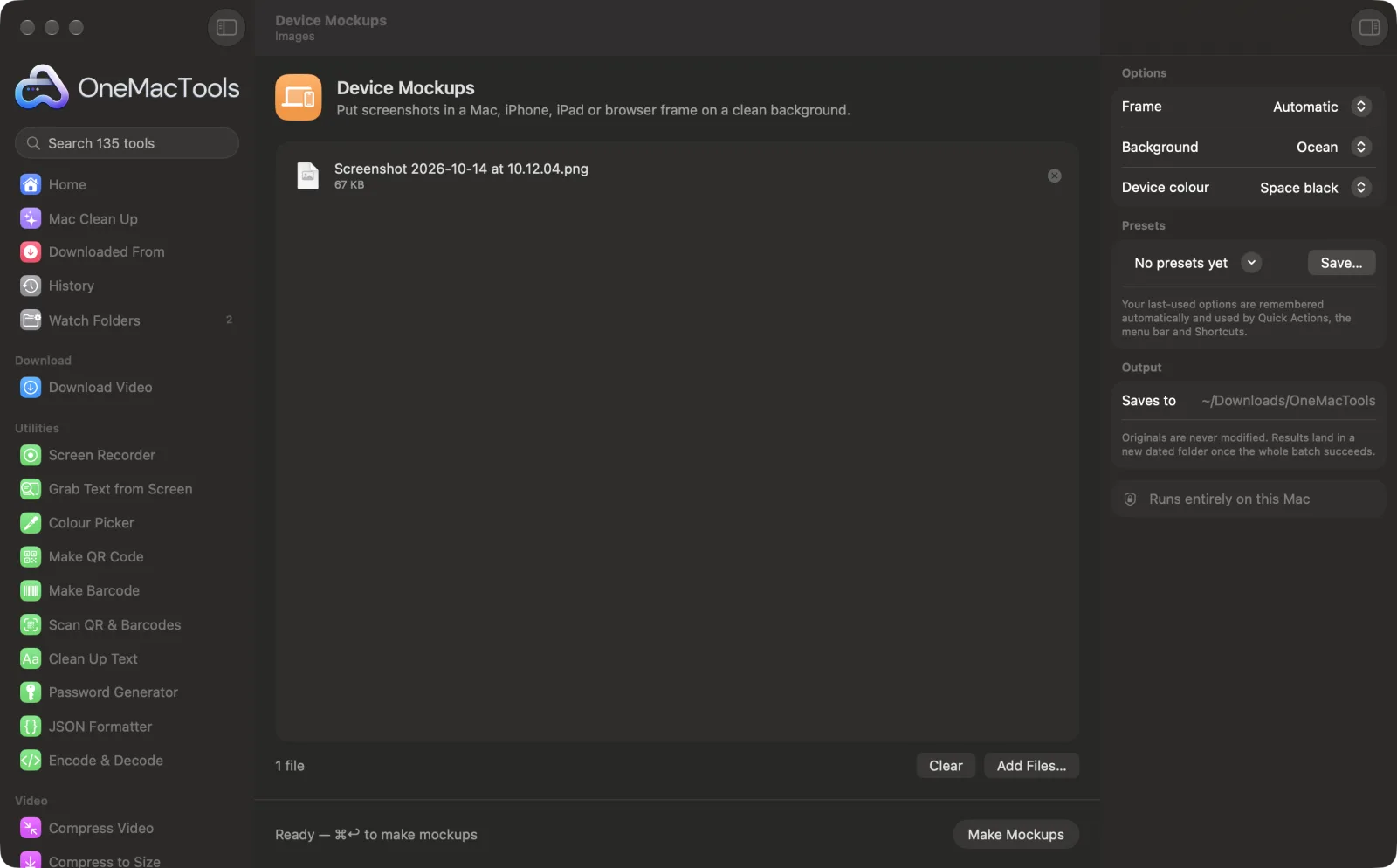
Device Mockups on a Mac
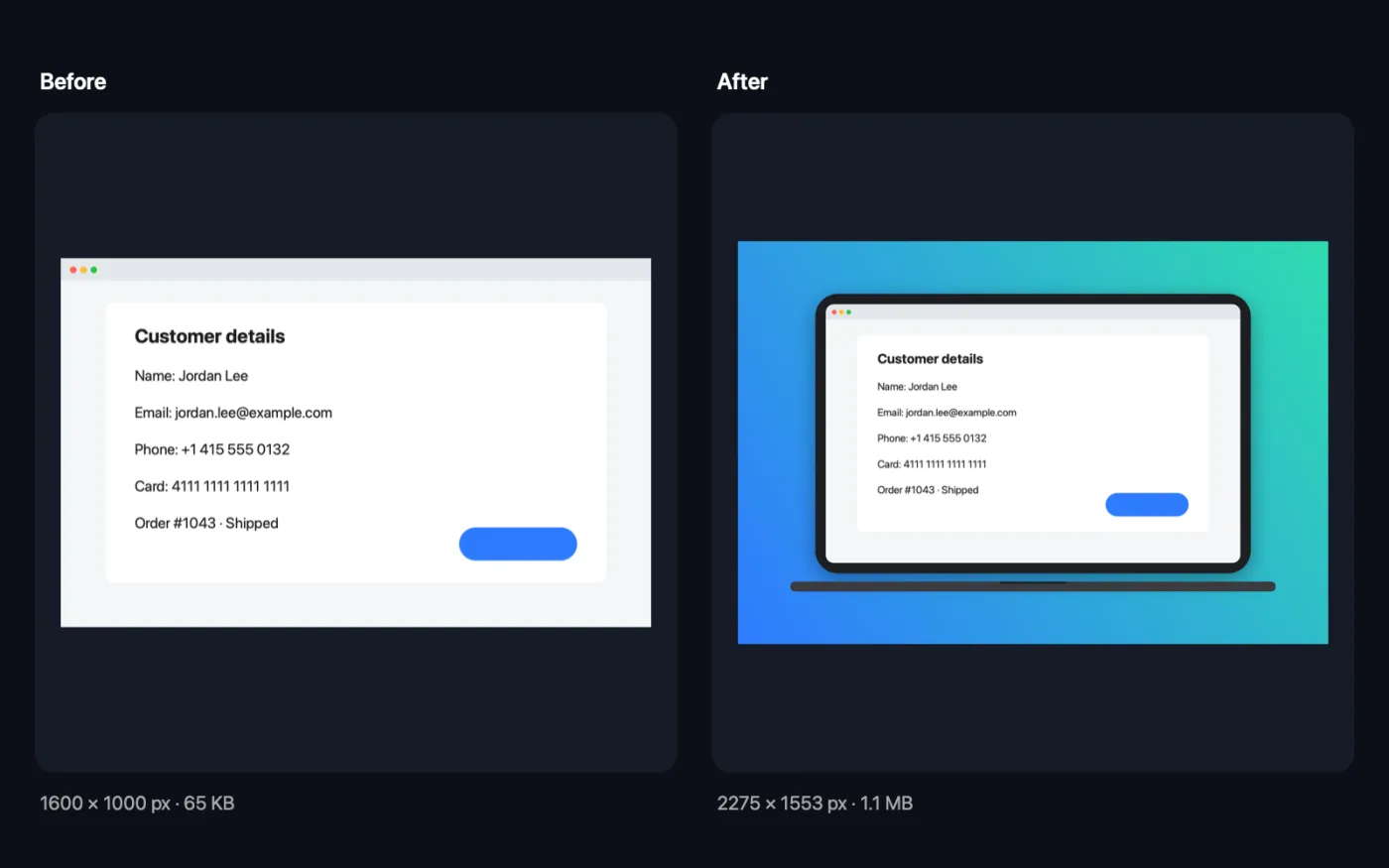
Screenshots from the app, using sample files.
How to use Device Mockups
- 1
Drop your screenshots
Add Mac, iPhone, iPad or web screenshots, as many as you like.
- 2
Choose the frame
Leave Automatic to pick the device from each screenshot's shape, or choose MacBook, Browser window, iPhone or iPad.
- 3
Pick a background and colour
Choose a gradient or a transparent background, and a space black or silver device.
- 4
Click Make Mockups
Each screenshot is placed in its frame and saved as a PNG with “mockup” in its name.
- 5
Use them
The mockups are saved in a new dated folder in Downloads › OneMacTools. Check them with the Preview (eye) button or Show in Finder, then drop them into your slides, store page or website.
What Device Mockups does
Drop screenshots and OneMacTools puts each one in a device frame: a MacBook, an iPhone with the Dynamic Island, an iPad or a browser window. It picks the right one from the shape, or you choose. Space black or silver, on a gradient or transparent background, saved as a high-resolution PNG.
Great for
- Make App Store or landing page visuals
- Present a design to a client
- Share a feature on social media
Options explained
- Frame
- Automatic puts tall screenshots in an iPhone, squarish ones in an iPad and wide ones in a MacBook. Or choose MacBook, Browser window (a light window with the three buttons and an address bar), iPhone (with the Dynamic Island) or iPad.
- Background
- Ocean, Sunset, Mint, Grape, Graphite or Paper gradients, or Transparent to place the device on your own background later.
- Device colour
- Space black or Silver, for the MacBook, iPhone and iPad frames. The browser window is always light.
Best practices
- Use screenshots at the device's real resolution, such as an iPhone screenshot in the iPhone frame. The frame is built around the screenshot's shape.
- Choose Transparent when the mockup is going on a coloured web page or slide, so it blends in.
- Use Browser window for website screenshots. It looks right at any width and doesn't suggest a particular device.
- Mockups are full resolution and can be large. Run them through Compress PNG or Convert to WebP before putting them on a website.
Works with
- In
- Screenshots and images in any format macOS can open.
- Out
- High-resolution PNG mockups with “mockup” in the name.
- The screenshot is drawn at its full resolution, so nothing is lost inside the frame.
Questions about Device Mockups
How do I put a screenshot in an iPhone or Mac frame?
Drop it onto Device Mockups and click Make Mockups. Automatic picks an iPhone, iPad or MacBook from the screenshot's shape, or you can choose the frame yourself.
Can I make a mockup with a transparent background?
Yes. Choose Background › Transparent and the PNG has no background, just the device and its shadow.
Why did my screenshot go in the wrong device?
Automatic decides from the shape: tall goes in an iPhone, squarish in an iPad, wide in a MacBook. Choose the frame yourself to override it.
What size is the mockup?
It's built around your screenshot at full resolution, plus the frame and a margin of background, so a large screenshot makes a large, sharp mockup. Resize it afterwards if you need a set size.
Does the device colour change the browser window?
No. The browser window frame is always light grey. Device colour applies to the MacBook, iPhone and iPad.
Does Device Mockups upload my files?
No. Device Mockups runs entirely on your Mac, so your files never leave it and it works offline.
Will Device Mockups change my original files?
No. Results are saved as new files in a dated folder in Downloads › OneMacTools, and your originals are left exactly as they were unless you turn on an option that says otherwise.
What does Device Mockups need?
Just a Mac with macOS 26 or later. There's nothing else to install.
Do this next
Put screenshots on a gradient with padding, rounded corners and a soft shadow.
Compress PNGShrink PNGs by 60–80% by reducing colours, keeping transparency — ideal for screenshots, logos and icons.
OG Image GeneratorMake the 1200 × 630 card that shows when your link is shared on X, LinkedIn, Slack, WhatsApp and iMessage.
Related Images tools
Convert between PNG, JPEG, HEIC, AVIF and TIFF. Reads WebP, RAW and more.
Compress ImagesShrink photos for email and the web, with a live before-and-after preview.
Convert to WebPMake small, web-ready WebP images, lossy or lossless, with transparency kept.
Resize ImagesResize by longest edge, exact pixels, percentage, or print size in cm, mm or inches at the DPI you need.
Crop ImagesCrop to an aspect ratio or an exact area, or trim plain borders automatically — one photo or a whole folder.
Rotate & Flip ImagesTurn or mirror photos in one go.

Device Mockups, plus 134 more.
One app. One price.
All 135 tools for $29, once. 14-day money-back guarantee.