
Crop a PDF on Mac
Trim white margins automatically, or cut the same margin from every side.
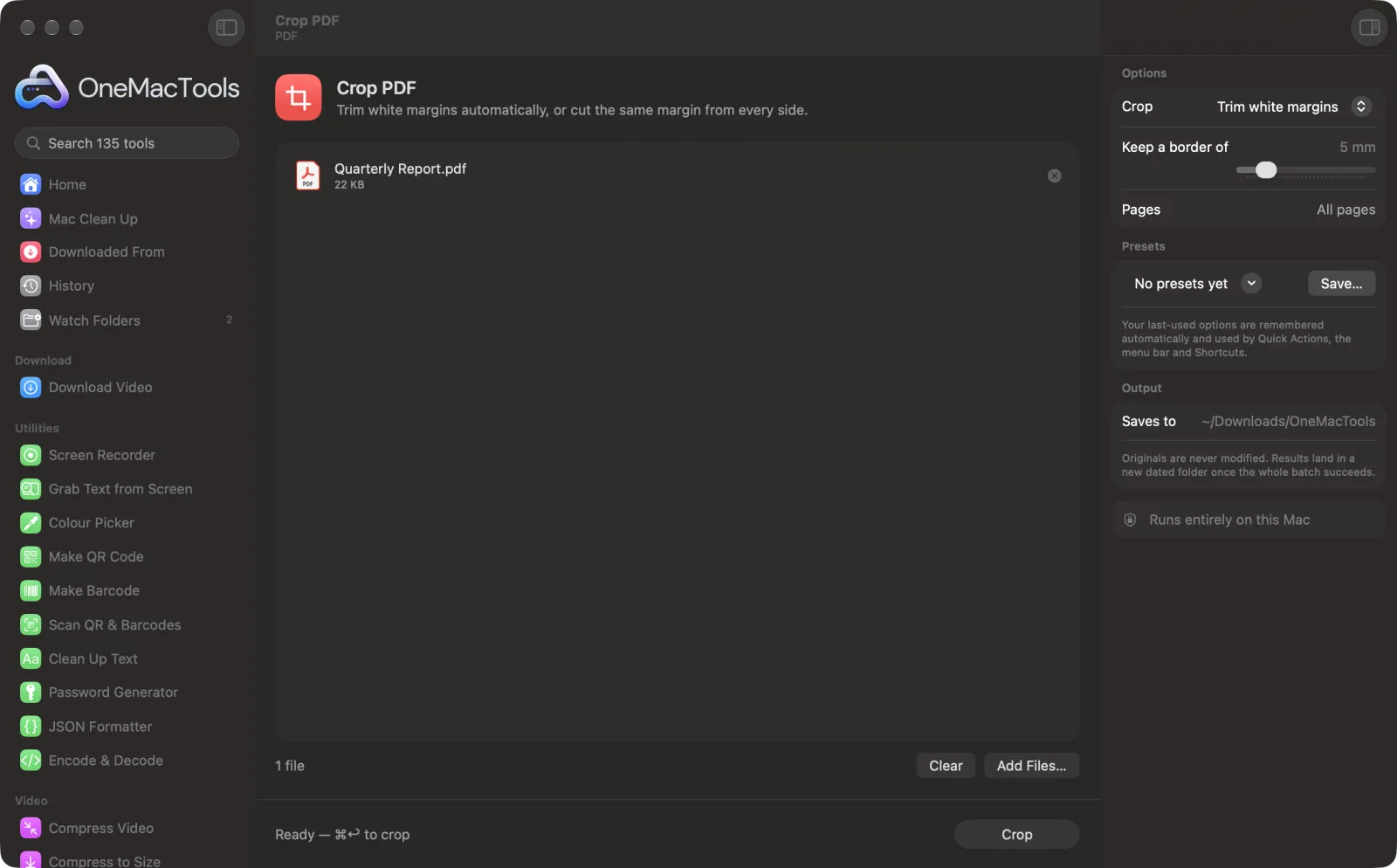
Crop PDF on a Mac
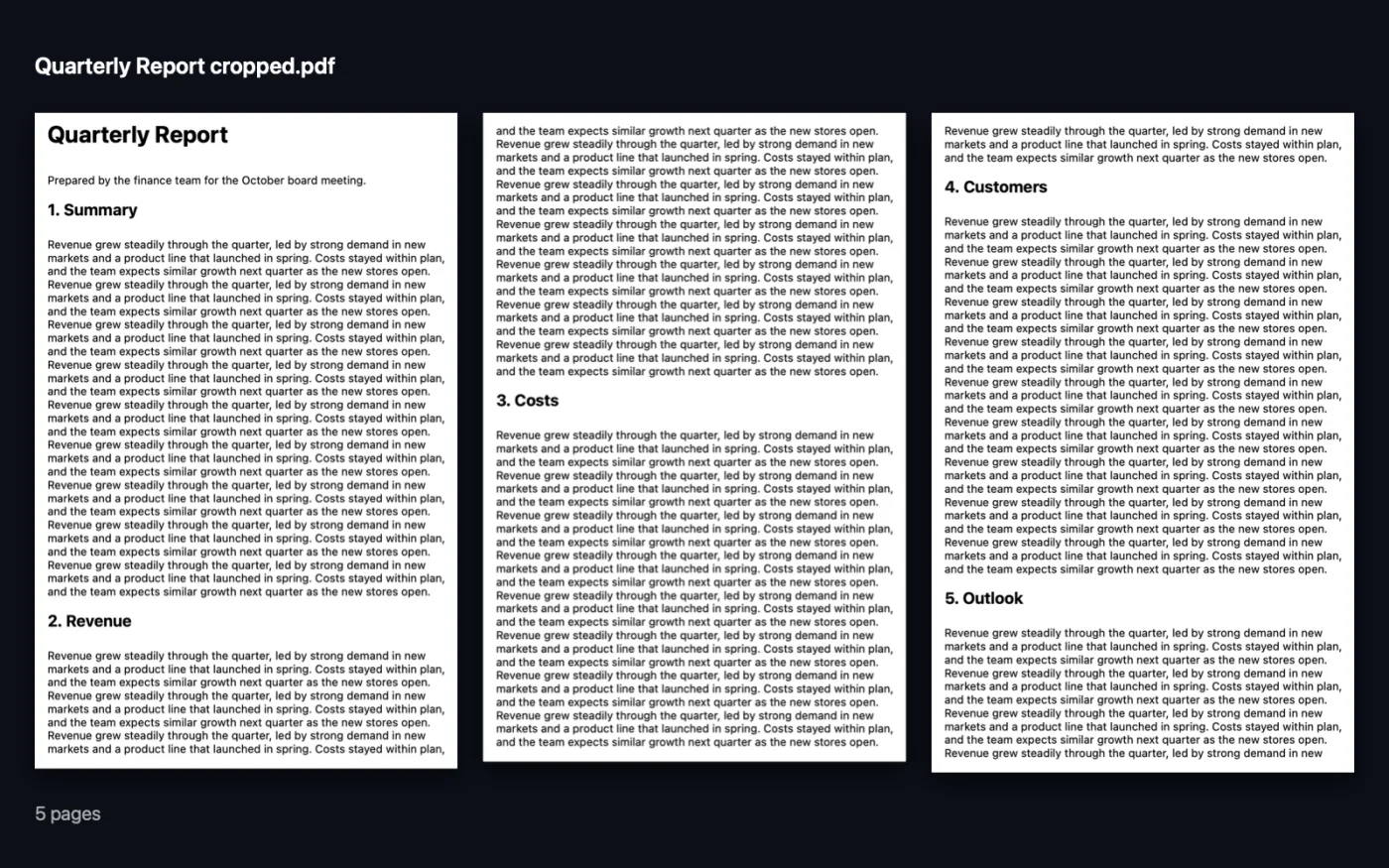
Screenshots from the app, using sample files.
How to use Crop PDF
- 1
Add the PDF
Drop one or more PDFs onto Crop PDF.
- 2
Choose how to crop
In the right-hand panel, pick Trim white margins to cut each page to its content, or Same margin on every side to cut a fixed amount.
- 3
Set the amount
Choose the border to keep, or the margin to cut, in millimetres.
- 4
Pick the pages
Leave Pages empty for every page, or type a range such as 1-3, 5, 8-.
- 5
Crop
Click Crop. The new PDF is saved with “cropped” in its name in a dated folder in Downloads › OneMacTools.
What Crop PDF does
OneMacTools finds where the content on each page ends and trims the white space around it, keeping a border you choose. Or cut a fixed margin from every side. Apply it to every page or just some.
Great for
- Make a PDF easier to read on a phone or e-reader
- Remove the wide margins of a scanned book
- Tidy slides exported with big borders
Options explained
- Crop
- Trim white margins (the default) finds where each page's content ends and cuts away the white space around it, page by page. Same margin on every side cuts the same amount from all four edges of every chosen page.
- Keep a border of
- 0–30 mm, 5 mm by default. Only shown with Trim white margins. How much white space to leave around the content so it doesn't touch the edge.
- Cut
- 0–60 mm, 15 mm by default. Only shown with Same margin on every side. How much to remove from each edge.
- Pages
- Which pages to crop, such as 1-3, 5, 8- (8- means page 8 to the end). Leave it empty for all pages.
Best practices
- Trim white margins makes PDFs much easier to read on a phone or e-reader, because the text fills more of the screen.
- Use Same margin on every side when pages have scanner shadows or punch holes near the edge that confuse automatic trimming.
- Crop changes the visible area of the page. The trimmed-off parts are hidden, not deleted, so use Redact PDF to remove sensitive content.
- Blank pages and pages that are rotated are left as they are when trimming white margins.
- Leave the cover out with a range like 2- so it keeps its full size.
Works with
- In
- PDF files, one or many at once.
- Out
- A cropped copy of each PDF, named “<name> cropped”.
- Crops that would leave a page smaller than about 13 mm across are skipped.
Questions about Crop PDF
How do I crop a PDF on a Mac?
Drop the PDF onto Crop PDF, choose Trim white margins or Same margin on every side, and click Crop. A cropped copy is saved in Downloads › OneMacTools.
How do I remove white margins from a PDF?
Choose Trim white margins. Each page is cut to its content, leaving the border you set with Keep a border of.
Can I crop only some pages?
Yes. Type the pages in Pages, for example 1-3, 5 or 8-, and the others stay as they are.
Does cropping remove the hidden content?
No. Cropping changes what's shown and printed, but the trimmed-off content is still in the file. Use Redact PDF to remove information for good.
Will the text stay sharp?
Yes. Cropping only changes the page edges, so text and images inside aren't re-rendered.
Why wasn't a page cropped?
Pages that are blank or rotated are skipped when trimming white margins, and so is any crop that would leave a tiny page.
Does Crop PDF upload my files?
No. Crop PDF runs entirely on your Mac, so your files never leave it and it works offline.
Will Crop PDF change my original files?
No. Results are saved as new files in a dated folder in Downloads › OneMacTools, and your originals are left exactly as they were unless you turn on an option that says otherwise.
What does Crop PDF need?
Just a Mac with macOS 26 or later. There's nothing else to install.
Do this next
Change every page to A4, US Letter or another size, scaling the content to fit.
Compress PDFShrink image-heavy PDFs for email and upload.
Redact PDFBlack out names, emails, phone and card numbers, removed for real and not just covered.
Related PDF tools
Combine PDFs into one, in the order you choose, or alternate pages to join front and back scans.
Split PDFSplit by pages, chapters (bookmarks), file size or where a word appears, or cut two-page scans in half.
Organize PDFReverse, reorder or split out odd and even pages.
Delete PagesRemove the pages you don't need.
Extract PagesPull the pages you want out into a new PDF.
Rotate PDF PagesTurn or flip some or all pages.

Crop PDF, plus 134 more.
One app. One price.
All 135 tools for $29, once. 14-day money-back guarantee.