
Deskew scanned PDFs and repair damaged PDFs on Mac
Straighten crooked scanned pages, or rebuild a PDF that won't open properly.
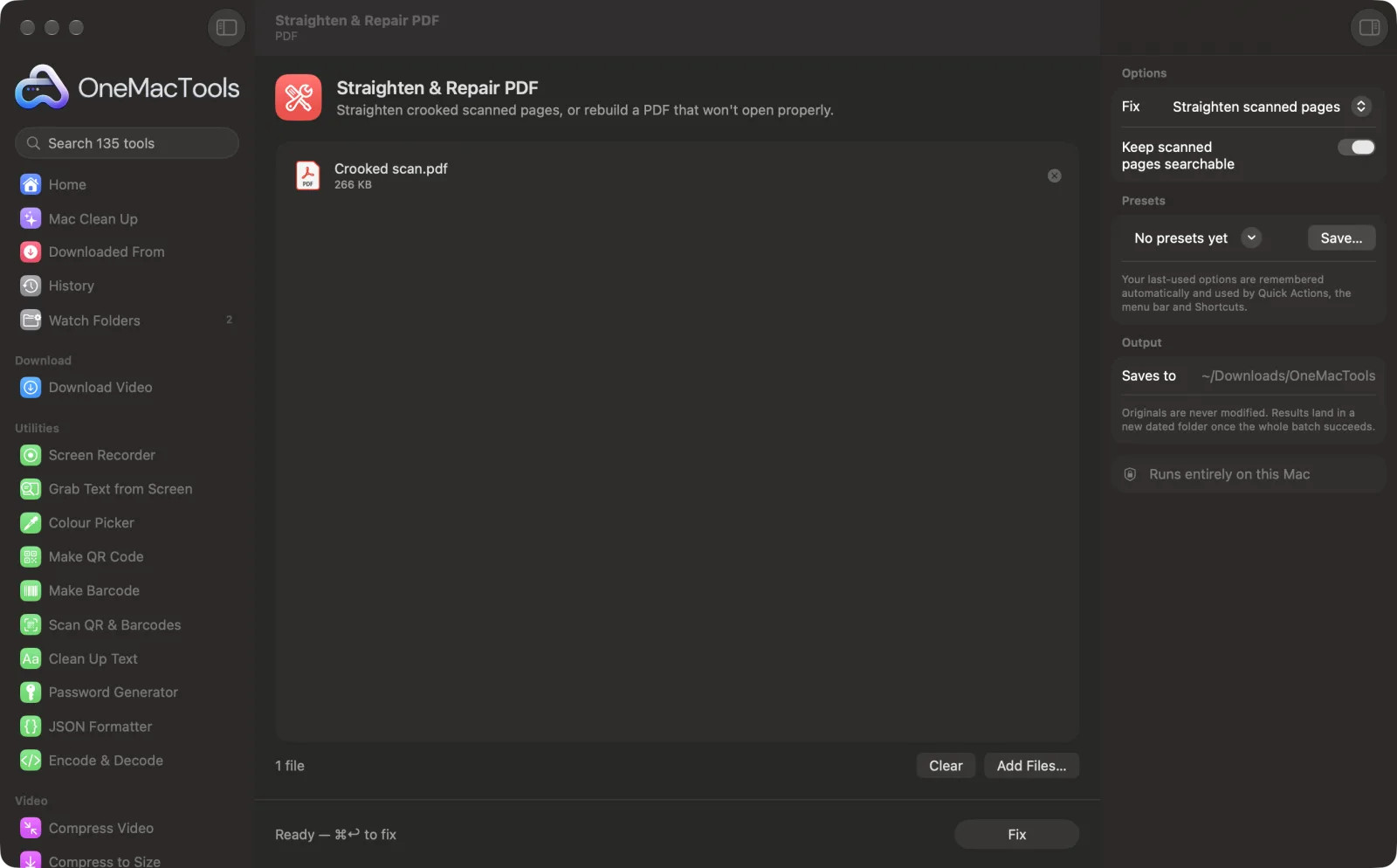
Straighten & Repair PDF on a Mac
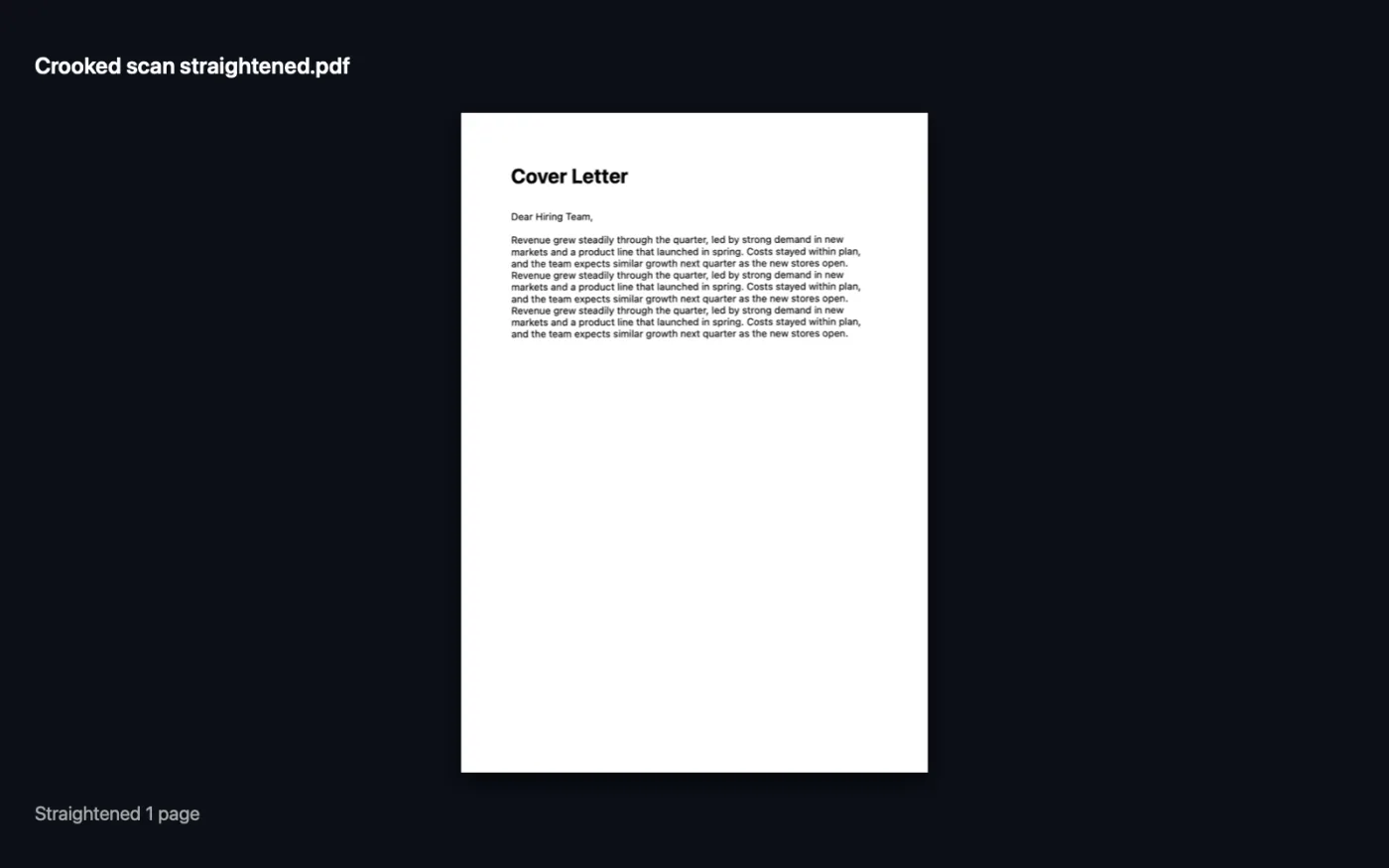
Screenshots from the app, using sample files.
How to use Straighten & Repair PDF
- 1
Add the PDF
Drop one or more PDFs onto Straighten & Repair PDF.
- 2
Choose the fix
In the right-hand panel, choose Straighten scanned pages or Repair a damaged PDF.
- 3
Keep it searchable
When straightening, leave Keep scanned pages searchable on to add a text layer to the straightened pages.
- 4
Fix
Click Fix. When straightening, the app tells you how many pages it turned, or that they were already straight.
- 5
Check the result
The fixed copy, named “straightened” or “repaired”, is saved in a dated folder in Downloads › OneMacTools.
What Straighten & Repair PDF does
Straighten measures the tilt of the text on each scanned page and turns it level, keeping the page searchable. Repair rebuilds a damaged PDF, for example from a broken download, by redrawing every page that can still be read into a fresh file.
Great for
- Fix a crooked phone scan before sending it
- Recover a PDF that Preview won't open
- Tidy a stack of scanned receipts
Options explained
- Fix
- Straighten scanned pages (the default) measures the tilt of the text on each page and turns the page level. Repair a damaged PDF redraws every page that can still be read into a fresh, well-formed file.
- Keep scanned pages searchable
- On by default. Only shown with Straighten scanned pages. Reads the text on each straightened page and adds an invisible text layer so you can search and copy it.
Best practices
- Straightening is meant for scans. Each page becomes an image, so use it on scanned documents rather than PDFs made from Word or a website.
- Pages tilted by more than about 15 degrees, and pages with little text, are left as they are.
- Repair helps with PDFs from interrupted downloads or broken email attachments that Preview won't open or shows as blank.
- Repair keeps what's drawn on each page, but links, form fields, comments and bookmarks don't carry over.
- Repair can't open password-protected PDFs. Remove the password first with Remove PDF Password.
Works with
- In
- Scanned PDFs to straighten, or damaged PDFs to repair.
- Out
- A copy named “<name> straightened” or “<name> repaired”.
- Straightened pages are saved as images, with a searchable text layer when that option is on.
- Repair recovers only the pages that can still be read.
Questions about Straighten & Repair PDF
How do I straighten a crooked scanned PDF on a Mac?
Drop it onto Straighten & Repair PDF, choose Straighten scanned pages and click Fix. Each tilted page is turned level and kept searchable.
How do I fix a PDF that won't open?
Choose Repair a damaged PDF and click Fix. Every page that can still be read is redrawn into a new, clean file.
Why does it say the pages were already straight?
No tilt was found. Very small tilts are ignored, as are pages with too little text to measure.
Will repair recover every page?
Only the pages macOS can still read. If the file is too damaged to read any pages, you'll be told so.
Is the straightened PDF still searchable?
Yes, with Keep scanned pages searchable on. The text is read again after straightening and added as a hidden layer.
What does deskew mean?
Deskewing is straightening a page that was scanned or photographed at a slight angle, so the lines of text run level.
Does Straighten & Repair PDF upload my files?
No. Straighten & Repair PDF runs entirely on your Mac, so your files never leave it and it works offline.
Will Straighten & Repair PDF change my original files?
No. Results are saved as new files in a dated folder in Downloads › OneMacTools, and your originals are left exactly as they were unless you turn on an option that says otherwise.
What does Straighten & Repair PDF need?
Just a Mac with macOS 26 or later. There's nothing else to install.
Do this next
Add an invisible OCR text layer to scanned PDFs so you can search, select and copy their text.
Compress PDFShrink image-heavy PDFs for email and upload.
Crop PDFTrim white margins automatically, or cut the same margin from every side.
Related PDF tools
Combine PDFs into one, in the order you choose, or alternate pages to join front and back scans.
Split PDFSplit by pages, chapters (bookmarks), file size or where a word appears, or cut two-page scans in half.
Organize PDFReverse, reorder or split out odd and even pages.
Delete PagesRemove the pages you don't need.
Extract PagesPull the pages you want out into a new PDF.
Rotate PDF PagesTurn or flip some or all pages.

Straighten & Repair PDF, plus 134 more.
One app. One price.
All 135 tools for $29, once. 14-day money-back guarantee.