
Resize images for Instagram, YouTube and LinkedIn on Mac
One photo in, every size out: Instagram, YouTube, X, LinkedIn, Facebook, WhatsApp and Pinterest.
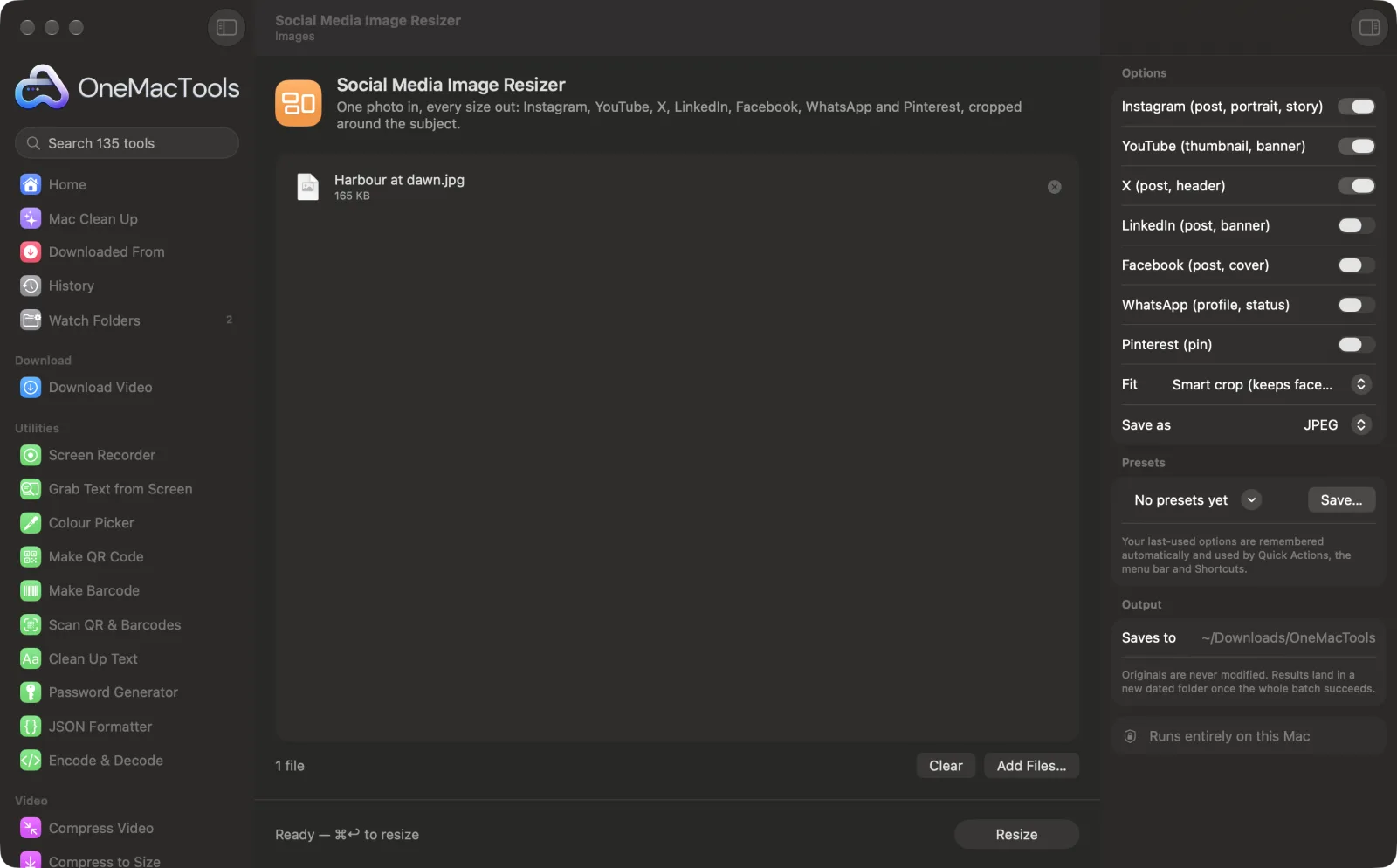
Social Media Image Resizer on a Mac
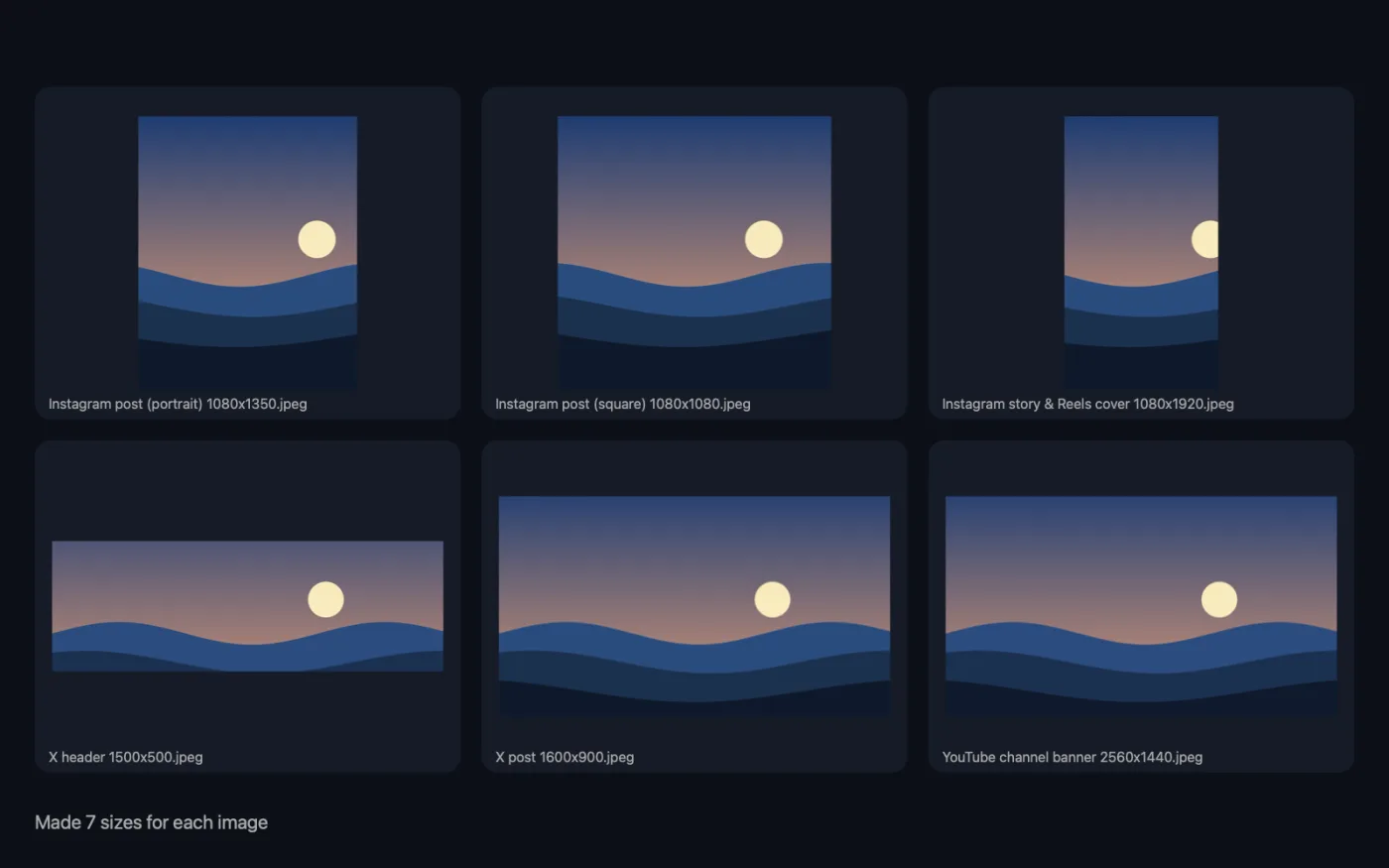
Screenshots from the app, using sample files.
How to use Social Media Image Resizer
- 1
Drop your photos
Add one photo or several. Each gets every size you turn on.
- 2
Turn on your platforms
Instagram and YouTube are on by default. Turn on X, LinkedIn, Facebook, WhatsApp or Pinterest if you post there.
- 3
Choose the fit
Smart crop keeps faces and the subject in view, Centre crop cuts evenly from the edges, and Whole photo puts the uncropped photo on a blurred background.
- 4
Click Resize
Every chosen size is made for each photo, named after the platform and its pixel size.
- 5
Post them
Each photo's sizes are in their own “social sizes” folder inside a new dated folder in Downloads › OneMacTools. Use the Preview (eye) button or Show in Finder.
What Social Media Image Resizer does
Tick the platforms you post to and get every size at once: Instagram square, portrait and story; YouTube thumbnail and banner; X post and header; LinkedIn post and banner; Facebook post and cover; WhatsApp profile and status; and a Pinterest pin. Smart crop keeps faces and the subject in view instead of cutting from the centre, or show the whole photo on a blurred background.
Great for
- Post one photo everywhere in the right shape
- Make a YouTube thumbnail and banner
- Update profile and cover images in one go
Options explained
- Instagram (post, portrait, story)
- On by default. Square post 1080 × 1080, portrait post 1080 × 1350, and story and Reels cover 1080 × 1920.
- YouTube (thumbnail, banner)
- On by default. Thumbnail 1280 × 720 and channel banner 2560 × 1440.
- X (post, header)
- Post 1600 × 900 and header 1500 × 500.
- LinkedIn (post, banner)
- Post 1200 × 627 and banner 1584 × 396.
- Facebook (post, cover)
- Post 1200 × 630 and cover 1640 × 624.
- WhatsApp (profile, status)
- Profile photo 640 × 640 and status 1080 × 1920.
- Pinterest (pin)
- Pin 1000 × 1500.
- Fit
- Smart crop (keeps faces and the subject in view) finds the largest face, or else the most eye-catching area, and crops around it. Centre crop always keeps the middle. Whole photo on a blurred background shows the entire photo, filling the rest of the frame with a blurred copy of it.
- Save as
- JPEG for photos, which makes smaller files, or PNG for graphics with text or flat colour.
Best practices
- Start with a large photo. Banners like the YouTube one are 2560 px wide, and a smaller photo has to be enlarged to fill them, which looks soft.
- Wide banners crop a lot from a portrait photo. Use Whole photo on a blurred background when nothing should be cut off.
- Banners and headers are partly covered by profile pictures and buttons on most platforms. Keep important text and faces near the centre.
- Only turn on the platforms you use. Every size is a separate file for each photo.
Works with
- In
- Photos and graphics in any format macOS can open.
- Out
- A “social sizes” folder per photo, with one JPEG or PNG per size, named like “Instagram post (square) 1080x1080”.
- Smaller photos are enlarged to fill bigger sizes, which can look soft.
Questions about Social Media Image Resizer
What sizes does it make?
Instagram square 1080 × 1080, portrait 1080 × 1350 and story 1080 × 1920; YouTube thumbnail 1280 × 720 and banner 2560 × 1440; X, LinkedIn and Facebook posts and covers; WhatsApp profile and status; and a Pinterest pin. Turn on just the platforms you use.
Will people get cut off?
Smart crop finds faces and the main subject and keeps them in view, instead of always cropping from the centre. Or put the whole photo on a blurred background so nothing is cut.
What size is a YouTube thumbnail?
1280 × 720 pixels, a 16:9 shape. Turn on YouTube and the thumbnail is made along with the 2560 × 1440 channel banner.
What's the best size for an Instagram post?
1080 × 1350 portrait takes up the most space in the feed. Square 1080 × 1080 and story 1080 × 1920 are made at the same time.
How do I post a landscape photo to Instagram stories without cropping?
Choose Whole photo on a blurred background. The full photo sits in the middle of the tall frame, with a blurred copy filling the space above and below.
JPEG or PNG?
JPEG for photos: smaller files that platforms handle well. PNG for graphics with text, logos or flat colour, where it keeps edges crisp.
Does Social Media Image Resizer upload my files?
No. Social Media Image Resizer runs entirely on your Mac, so your files never leave it and it works offline.
Will Social Media Image Resizer change my original files?
No. Results are saved as new files in a dated folder in Downloads › OneMacTools, and your originals are left exactly as they were unless you turn on an option that says otherwise.
What does Social Media Image Resizer need?
Just a Mac with macOS 26 or later. There's nothing else to install.
Do this next
Add captions, quotes or labels with your font, colour, outline and shadow — or make a classic meme.
OG Image GeneratorMake the 1200 × 630 card that shows when your link is shared on X, LinkedIn, Slack, WhatsApp and iMessage.
Compress ImagesShrink photos for email and the web, with a live before-and-after preview.
Related Images tools
Convert between PNG, JPEG, HEIC, AVIF and TIFF. Reads WebP, RAW and more.
Convert to WebPMake small, web-ready WebP images, lossy or lossless, with transparency kept.
Resize ImagesResize by longest edge, exact pixels, percentage, or print size in cm, mm or inches at the DPI you need.
Crop ImagesCrop to an aspect ratio or an exact area, or trim plain borders automatically — one photo or a whole folder.
Rotate & Flip ImagesTurn or mirror photos in one go.
Screenshot BeautifierPut screenshots on a gradient with padding, rounded corners and a soft shadow.

Social Media Image Resizer, plus 134 more.
One app. One price.
All 135 tools for $29, once. 14-day money-back guarantee.