
Reverse, loop or boomerang a video on Mac
Play a clip backwards, repeat it, or make a back-and-forth boomerang.
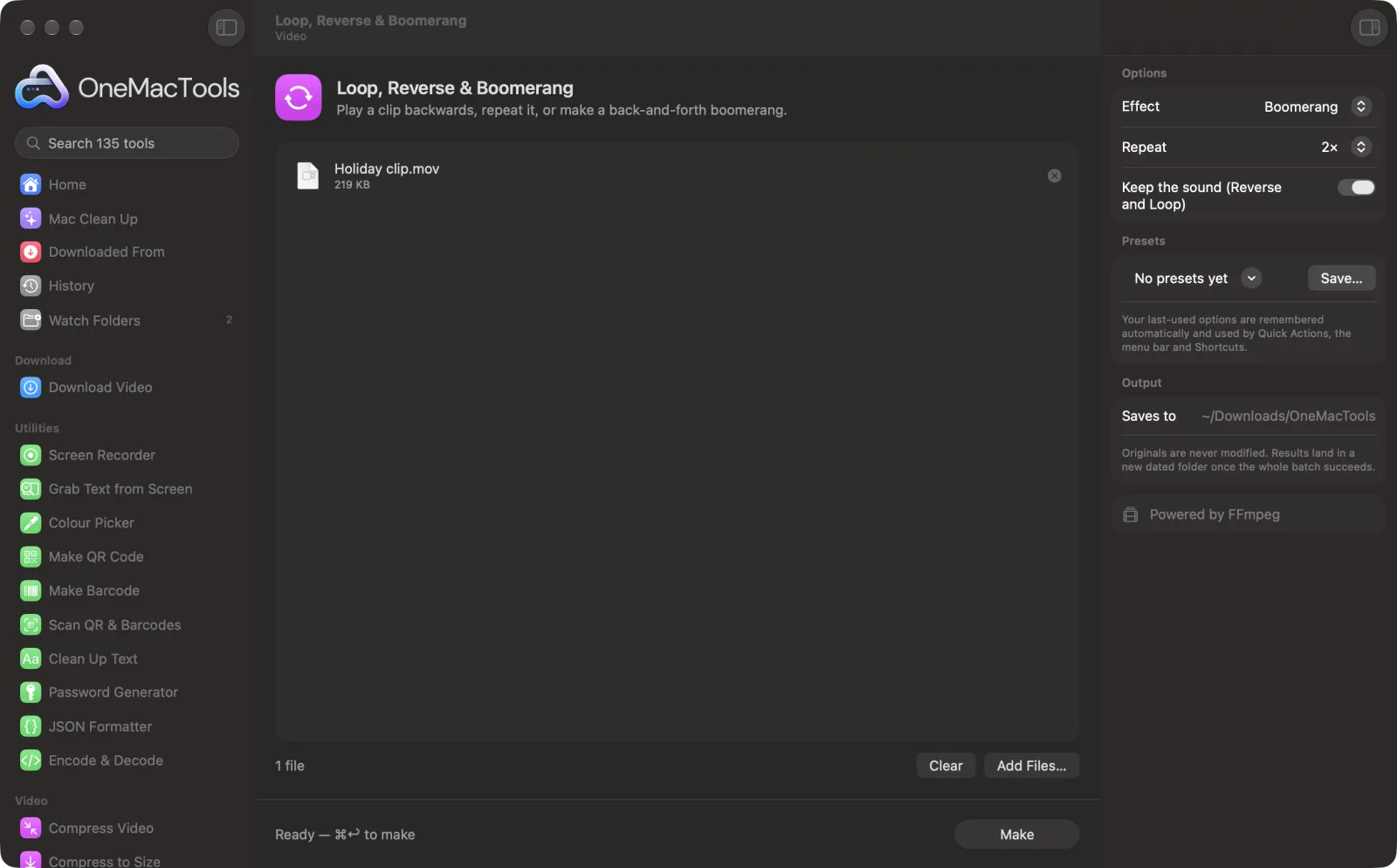
Loop, Reverse & Boomerang on a Mac
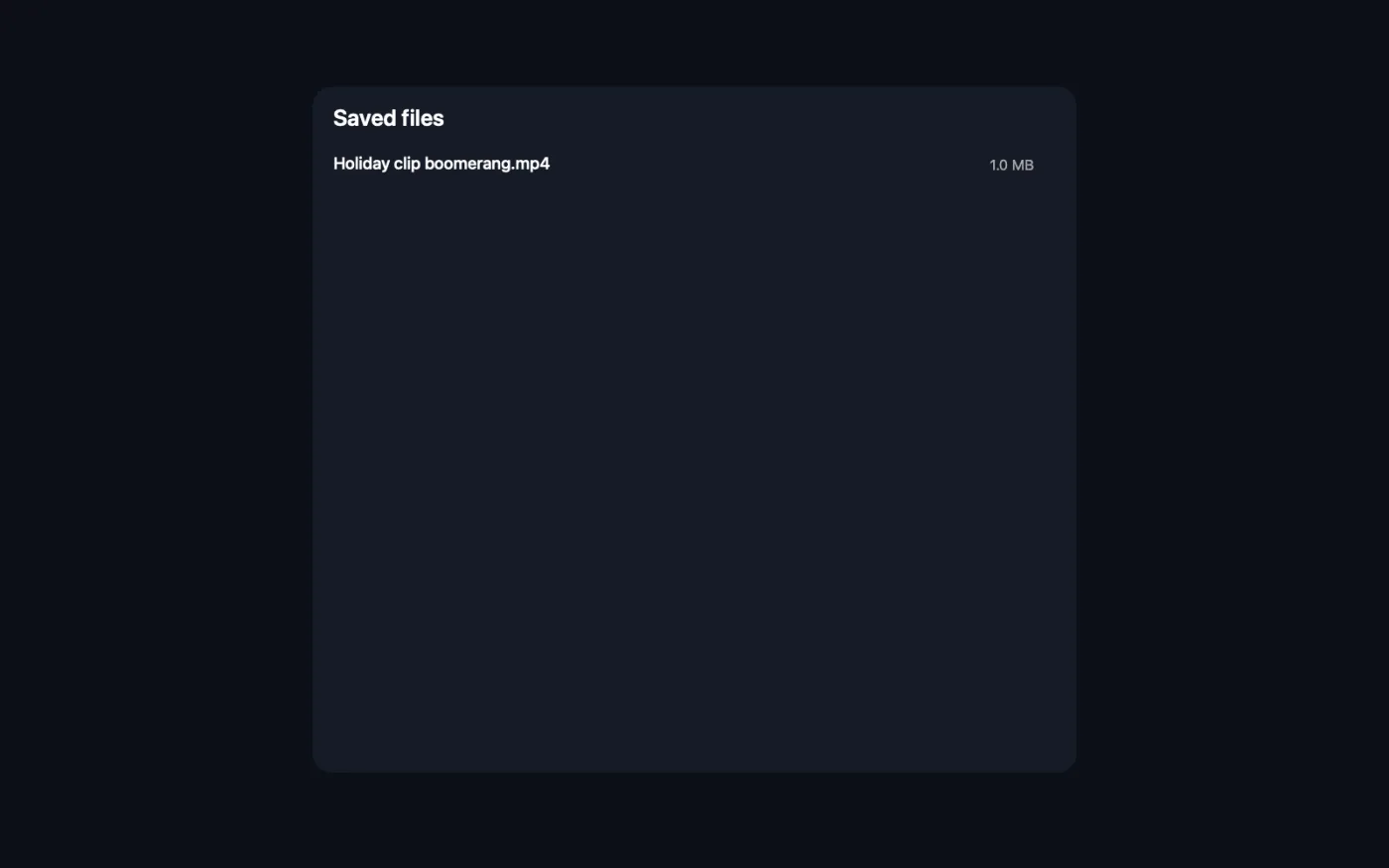
Screenshots from the app, using sample files.
How to use Loop, Reverse & Boomerang
- 1
Install FFmpeg once
The first time, OneMacTools offers to install FFmpeg through Homebrew with one click.
- 2
Drop a short clip
Add the video you want to play with. Short clips of a few seconds work best for boomerangs.
- 3
Choose the effect
Boomerang plays forwards then backwards, Reverse plays backwards, and Loop repeats the clip.
- 4
Set the repeats and sound
Choose how many times it repeats, and whether to keep the sound for Reverse and Loop.
- 5
Click Make
The result is saved as an MP4, with the effect in its name, in a new dated folder in Downloads › OneMacTools. Watch it with the Preview (eye) button or Show in Finder. Your original clip doesn't change.
What Loop, Reverse & Boomerang does
Reverse plays the clip backwards (with the sound reversed too, if you like). Loop repeats it a set number of times. Boomerang plays it forwards then backwards, like the camera effect, and repeats it. Everything is processed on your Mac with FFmpeg.
Uses FFmpeg, which OneMacTools installs for you with one click through Homebrew.
Great for
- Make a boomerang from a short phone clip
- Loop a product shot for a website hero
- Reverse a pour or a jump for fun
Options explained
- Effect
- Boomerang (the default) plays the clip forwards then backwards, like the camera effect. Reverse plays it backwards. Loop plays it again and again.
- Repeat
- 1×, 2× (the default), 3× or 5×. How many times the boomerang or reversed clip plays. Loop always plays the clip at least twice.
- Keep the sound (Reverse and Loop)
- On by default. Reverse plays the sound backwards too; Loop repeats it. Boomerangs are always silent, like the camera effect.
Best practices
- Boomerangs work best with 1–3 seconds of simple motion: a jump, a toss, a clink of glasses. Trim the clip first.
- Reverse and Boomerang only take clips up to 2 minutes, because the whole clip has to be held in memory. Loop has no limit.
- Turn off Keep the sound for reversed clips. Backwards speech rarely sounds good.
- Looped clips make good website or presentation backgrounds. Mute them and compress them afterwards.
- Convert a boomerang to a GIF with Video to GIF if you need it to loop in a chat or document.
Works with
- In
- Any video FFmpeg can read, including MOV, MP4, MKV, WebM and AVI.
- Out
- An H.264 MP4 named after the effect: “boomerang”, “reverse” or “loop”.
- Needs FFmpeg (one-click install).
- Reverse and Boomerang accept clips up to 2 minutes long.
Questions about Loop, Reverse & Boomerang
How do I make a boomerang video on a Mac?
Drop a short clip onto Loop, Reverse & Boomerang, choose Boomerang and click Make. It plays forwards then backwards, repeated as many times as you choose.
How do I reverse a video on a Mac?
Choose Reverse and click Make. The picture plays backwards, and so does the sound if Keep the sound is on.
How do I loop a video several times?
Choose Loop and set Repeat to 2×, 3× or 5×. The clip is played that many times in one file.
Why does it say my video is longer than 2 minutes?
Reversing needs the whole clip in memory, so Reverse and Boomerang are limited to 2 minutes. Trim the clip with Trim Video first.
Does a boomerang keep the sound?
No. Boomerangs are always silent, like the camera effect. Reverse and Loop can keep the sound.
Can I turn the boomerang into a GIF?
Yes. Run the result through Video to GIF to get a looping GIF for chats and documents.
Does Loop, Reverse & Boomerang upload my files?
No. Loop, Reverse & Boomerang runs entirely on your Mac, so your files never leave it and it works offline.
Will Loop, Reverse & Boomerang change my original files?
No. Results are saved as new files in a dated folder in Downloads › OneMacTools, and your originals are left exactly as they were unless you turn on an option that says otherwise.
What does Loop, Reverse & Boomerang need?
macOS 26 or later and FFmpeg, which OneMacTools can install for you through Homebrew with one click.
Do this next
Make a crisp, looping GIF with an optimised palette.
Trim VideoKeep just the part you need.
Change SpeedSpeed up or slow down, with the audio pitch kept natural.
Related Video tools
Make videos much smaller while keeping them sharp.
Compress to SizeHit a file-size limit for email, Discord or WhatsApp. Pick the size, not the quality.
Convert VideoTurn any video into MP4, MOV, WebM or MKV.
Resize VideoScale videos to a standard resolution.
Crop VideoCentre-crop to square, vertical or widescreen for any platform.
Rotate & Flip VideoFix sideways phone clips or mirror a video.

Loop, Reverse & Boomerang, plus 134 more.
One app. One price.
All 135 tools for $29, once. 14-day money-back guarantee.