
Merge audio files on Mac
Join recordings in order, with optional crossfades, and even out the loudness for podcasts.
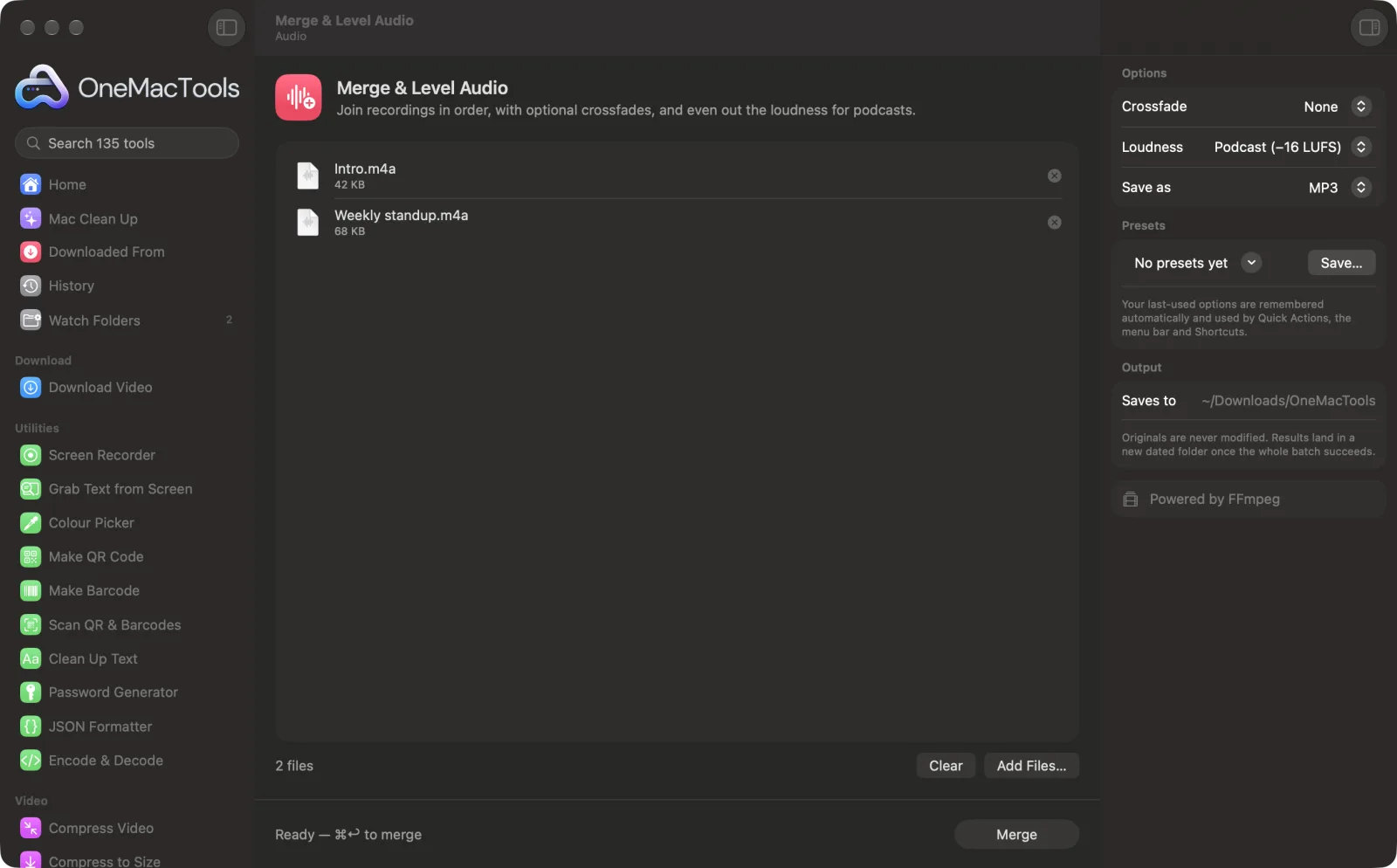
Merge & Level Audio on a Mac

Screenshots from the app, using sample files.
How to use Merge & Level Audio
- 1
Drop your recordings
Drag in the audio files, or videos whose sound you want, in the order they should play.
- 2
Put them in order
Drag the files up and down the list until the order is right. They're joined from top to bottom.
- 3
Choose a crossfade and loudness
Add a 1, 2 or 3 second crossfade between parts if you like, and pick Podcast or Music to even out the volume.
- 4
Pick the format and click Merge
Choose MP3, M4A or WAV. Everything is joined into one file called “Merged audio”.
- 5
Listen to the result
It's in a new dated folder in Downloads › OneMacTools. Play it with the Preview (eye) button or use Show in Finder. Your recordings stay as they were.
What Merge & Level Audio does
Drop recordings in the order you want and OneMacTools joins them into one file. Add a crossfade between parts, and level the loudness to the podcast standard (−16 LUFS) or for music (−14 LUFS), so quiet and loud parts sound even. Save as MP3, M4A or WAV.
Uses FFmpeg, which OneMacTools installs for you with one click through Homebrew.
Great for
- Join podcast segments recorded separately
- Combine voice memos into one file
- Even out a recording that's too quiet
Options explained
- Crossfade
- None, 1 second, 2 seconds or 3 seconds, None by default. With a crossfade, the end of each part fades into the start of the next, so they overlap by that much (never more than half the shortest part). Use None for back-to-back speech, a crossfade for music.
- Loudness
- Podcast (−16 LUFS), Music (−14 LUFS) or Leave as is. Podcast is the default and the standard level for spoken shows. Music matches the level most streaming services use. Leave as is joins the parts without changing their volume.
- Save as
- MP3, M4A or WAV. MP3 and M4A are 192 kbps and suit sharing and podcast hosts. WAV is uncompressed, for further editing.
Best practices
- Run each part through Clean Up Audio first if they were recorded in different places. Merging works best when the parts sound alike.
- Drop in just one file to level its loudness without joining anything. It's saved with “levelled” in the name.
- Keep crossfades short for speech. A 3-second overlap suits music but can blur words together.
- Choose Podcast loudness for anything spoken, even if it isn't a podcast. It's a comfortable listening level on phones and laptops.
- Every part is resampled to 48 kHz stereo, so files from different recorders join cleanly.
Works with
- In
- Audio files (MP3, M4A, WAV, FLAC, AIFF and more) and videos, which contribute their sound.
- Out
- One MP3, M4A or WAV file, 48 kHz stereo, called “Merged audio”. A single file is saved with “levelled” in its name.
- Every file you add must contain sound; a silent video can't be merged.
Questions about Merge & Level Audio
How do I merge audio files on a Mac?
Drop the files onto Merge & Level Audio, drag them into the right order, choose a format and click Merge. They're joined into one file.
How do I change the order of the files?
Drag them up or down in the file list before you click Merge. They're joined from top to bottom.
What is a crossfade?
The end of one part fades out while the next fades in, so they overlap for a second or more. It smooths the change between songs or segments.
What loudness should a podcast be?
−16 LUFS is the common target for podcasts, and it's what the Podcast setting uses. Music uses −14 LUFS, the level most streaming services aim for.
Can I just make one recording louder?
Yes. Drop in a single file and choose Podcast or Music. It's levelled and saved with “levelled” in the name.
Can I merge files of different formats?
Yes. MP3, M4A, WAV, FLAC and videos can all go in together. Everything is converted to the same sample rate and joined into the format you choose.
Does Merge & Level Audio upload my files?
No. Merge & Level Audio runs entirely on your Mac, so your files never leave it and it works offline.
Will Merge & Level Audio change my original files?
No. Results are saved as new files in a dated folder in Downloads › OneMacTools, and your originals are left exactly as they were unless you turn on an option that says otherwise.
What does Merge & Level Audio need?
macOS 26 or later and FFmpeg, which OneMacTools can install for you through Homebrew with one click.
Do this next
Reduce background noise and even out loudness.
TranscribeTurn speech in audio or video into text or subtitles with Apple's on-device speech recognition.
Convert AudioConvert between MP3, M4A, WAV and FLAC.
Related Audio tools
Capture a voice memo or narration from any microphone.
Extract AudioPull the soundtrack out of any video.
Trim AudioCut a song, voice memo or podcast down to size.
Ringtone MakerCut any song or video into an iPhone ringtone (.m4r) with smooth fades.
Text to SpeechTurn documents into spoken audio with the Mac's built-in voices.

Merge & Level Audio, plus 134 more.
One app. One price.
All 135 tools for $29, once. 14-day money-back guarantee.