
Split a GIF into frames on Mac
Split an animated GIF into complete PNG frames, with each frame's timing.
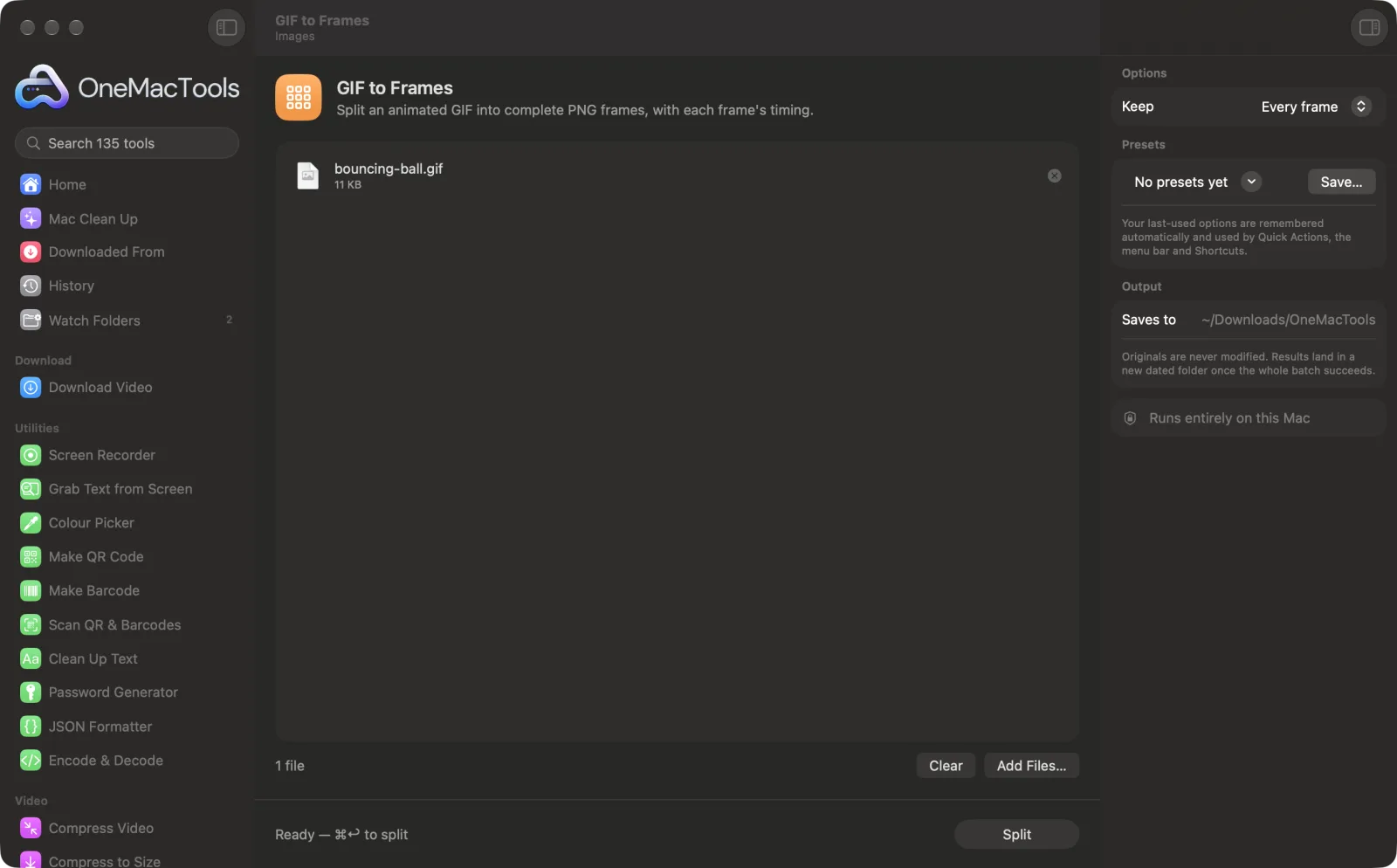
GIF to Frames on a Mac
Screenshots from the app, using sample files.
How to use GIF to Frames
- 1
Drop your GIFs
Add one animated GIF or several. Each gets its own folder of frames.
- 2
Choose how many frames to keep
Every frame, or every 2nd, 5th or 10th for long animations.
- 3
Click Split
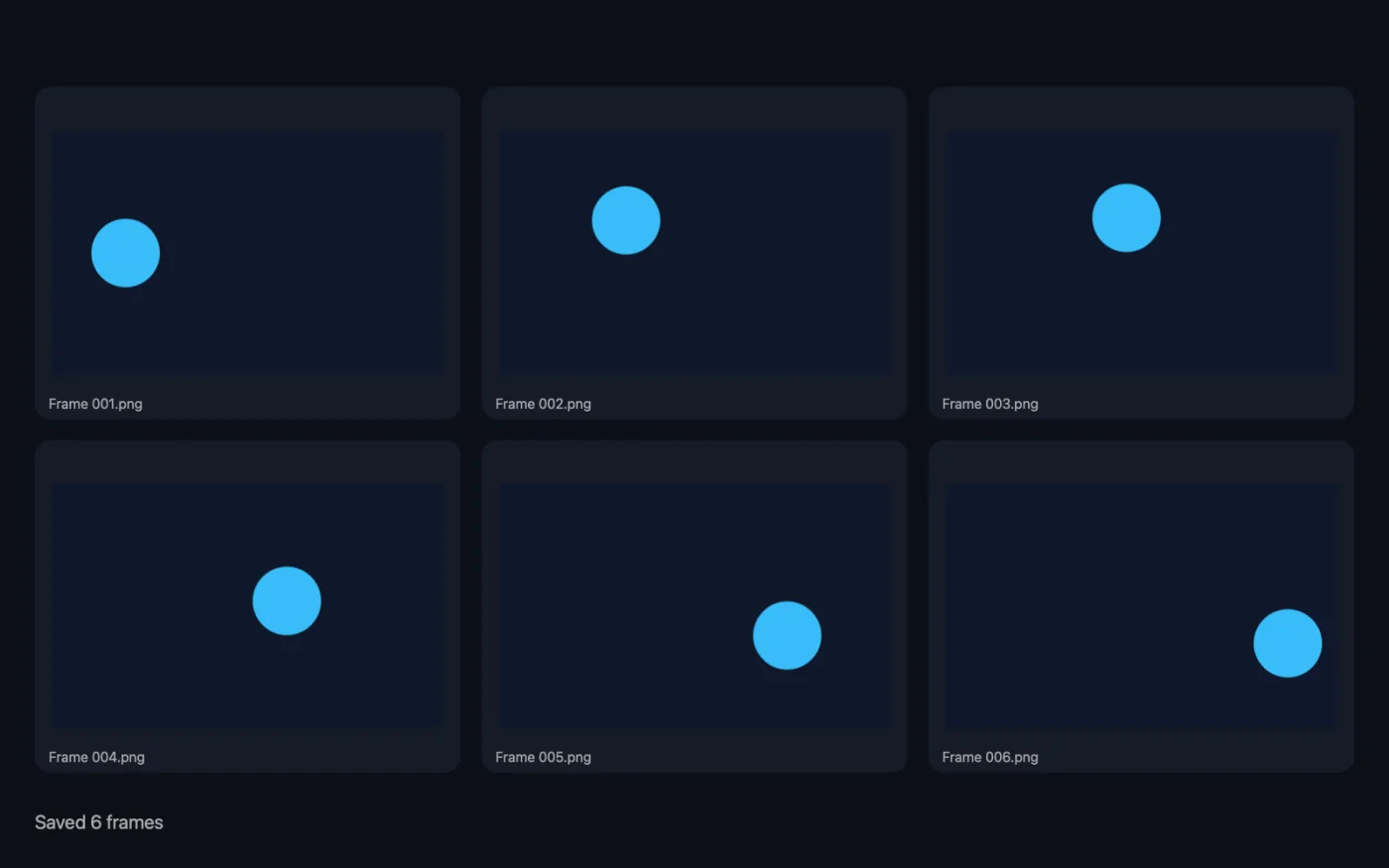
Each frame is rebuilt as a complete picture, exactly as it looks when the GIF plays, and saved as a PNG.
- 4
Open the folder
Find a folder named after each GIF with “frames” added, in a dated folder in Downloads › OneMacTools. It holds the numbered PNGs and a Timing spreadsheet.
What GIF to Frames does
GIFs often store only what changed from one frame to the next. GIF to Frames rebuilds every frame as a complete PNG, as it looks when the animation plays, and saves each frame's timing in a spreadsheet. Keep every frame, or every 2nd, 5th or 10th.
Great for
- Grab one frame of a GIF as a still
- Edit an animation frame by frame
- Make a contact sheet of a GIF
Options explained
- Keep
- Every frame, Every 2nd frame, Every 5th frame or Every 10th frame. Keeping fewer is handy for long GIFs when you only want a few stills or a contact sheet.
Best practices
- Frames keep their original numbers even when you skip some, so you can always tell where a still came from.
- Use the Timing spreadsheet when rebuilding an animation, so held frames and pauses play for the right length.
- To pick a single still, keep every frame and flick through the folder with Quick Look (press Space in Finder).
- Transparent GIFs give transparent PNGs, ready to place on any background.
Works with
- In
- Animated GIFs.
- Out
- A folder per GIF with numbered PNGs (Frame 001.png and so on) and Timing.csv listing how long each saved frame shows.
- Each PNG is the complete frame, not just the part that changed from the frame before.
Questions about GIF to Frames
How do I split a GIF into frames on a Mac?
Drop the GIF onto GIF to Frames and click Split. You get a folder with every frame as a numbered PNG, plus a spreadsheet of timings.
Why do some GIF frames look broken when extracted elsewhere?
GIFs often store only the pixels that changed from one frame to the next. GIF to Frames rebuilds each frame as it looks when the animation plays, so every PNG is complete.
How do I save one frame of a GIF as a picture?
Split the GIF, open the frames folder and pick the PNG you want. Each one is a full, standalone image.
What is in the Timing spreadsheet?
One row per saved frame with how many seconds it shows. Handy when you want to edit frames and put the animation back together with the same rhythm.
Do the frames keep transparency?
Yes. Frames are saved as PNG, so transparent areas in the GIF stay transparent.
Does GIF to Frames upload my files?
No. GIF to Frames runs entirely on your Mac, so your files never leave it and it works offline.
Will GIF to Frames change my original files?
No. Results are saved as new files in a dated folder in Downloads › OneMacTools, and your originals are left exactly as they were unless you turn on an option that says otherwise.
What does GIF to Frames need?
Just a Mac with macOS 26 or later. There's nothing else to install.
Do this next
Turn photos, screenshots or drawings into an animated GIF, with the timing, size and loop you choose.
Compress & Resize GIFMake GIFs smaller by reducing colours, dropping frames or scaling down, keeping the timing and loop.
Related Images tools
Convert between PNG, JPEG, HEIC, AVIF and TIFF. Reads WebP, RAW and more.
Compress ImagesShrink photos for email and the web, with a live before-and-after preview.
Convert to WebPMake small, web-ready WebP images, lossy or lossless, with transparency kept.
Resize ImagesResize by longest edge, exact pixels, percentage, or print size in cm, mm or inches at the DPI you need.
Crop ImagesCrop to an aspect ratio or an exact area, or trim plain borders automatically — one photo or a whole folder.
Rotate & Flip ImagesTurn or mirror photos in one go.

GIF to Frames, plus 134 more.
One app. One price.
All 135 tools for $29, once. 14-day money-back guarantee.