
Make an animated GIF from images on Mac
Turn photos, screenshots or drawings into an animated GIF, with the timing, size and loop you choose.
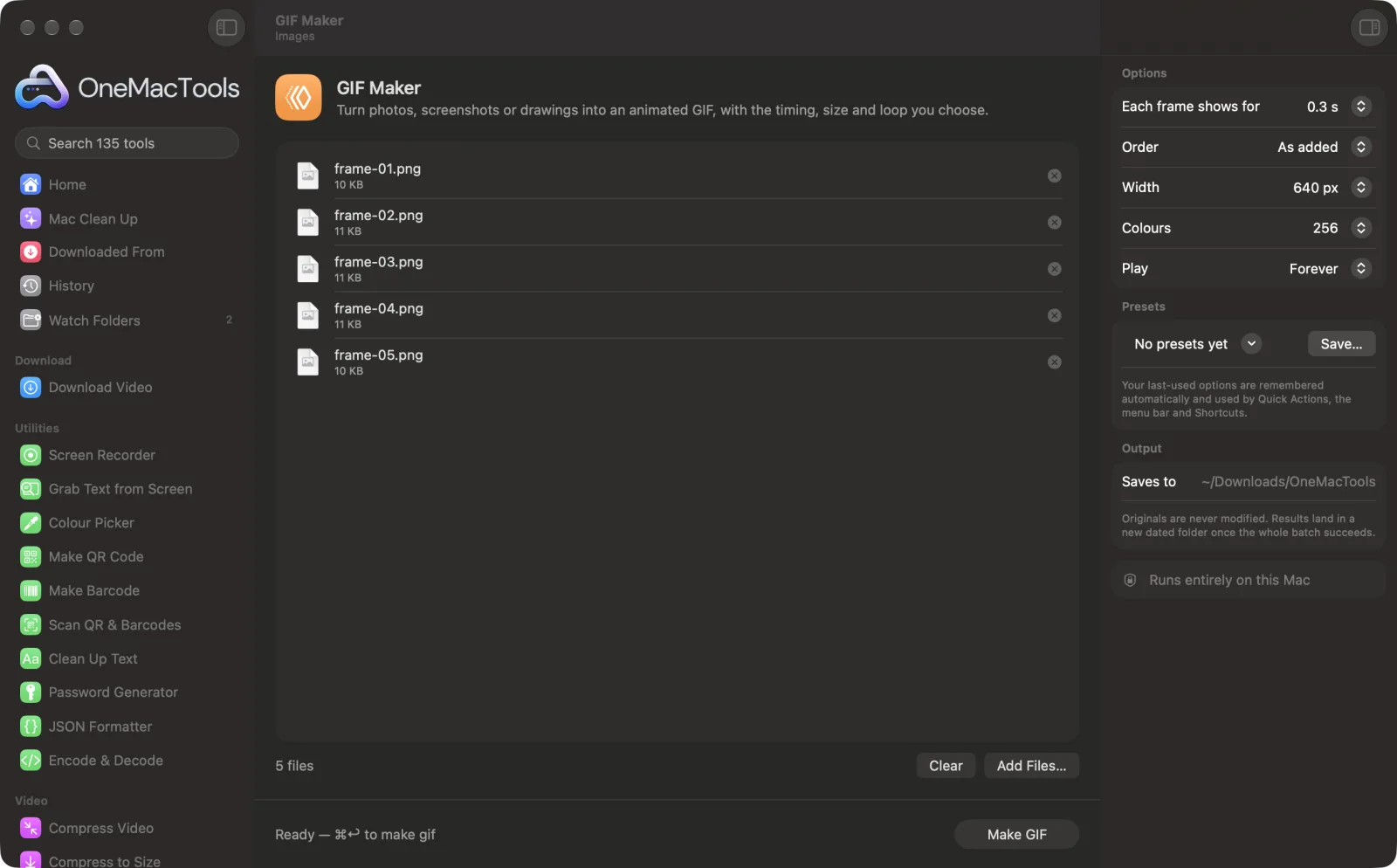
GIF Maker on a Mac
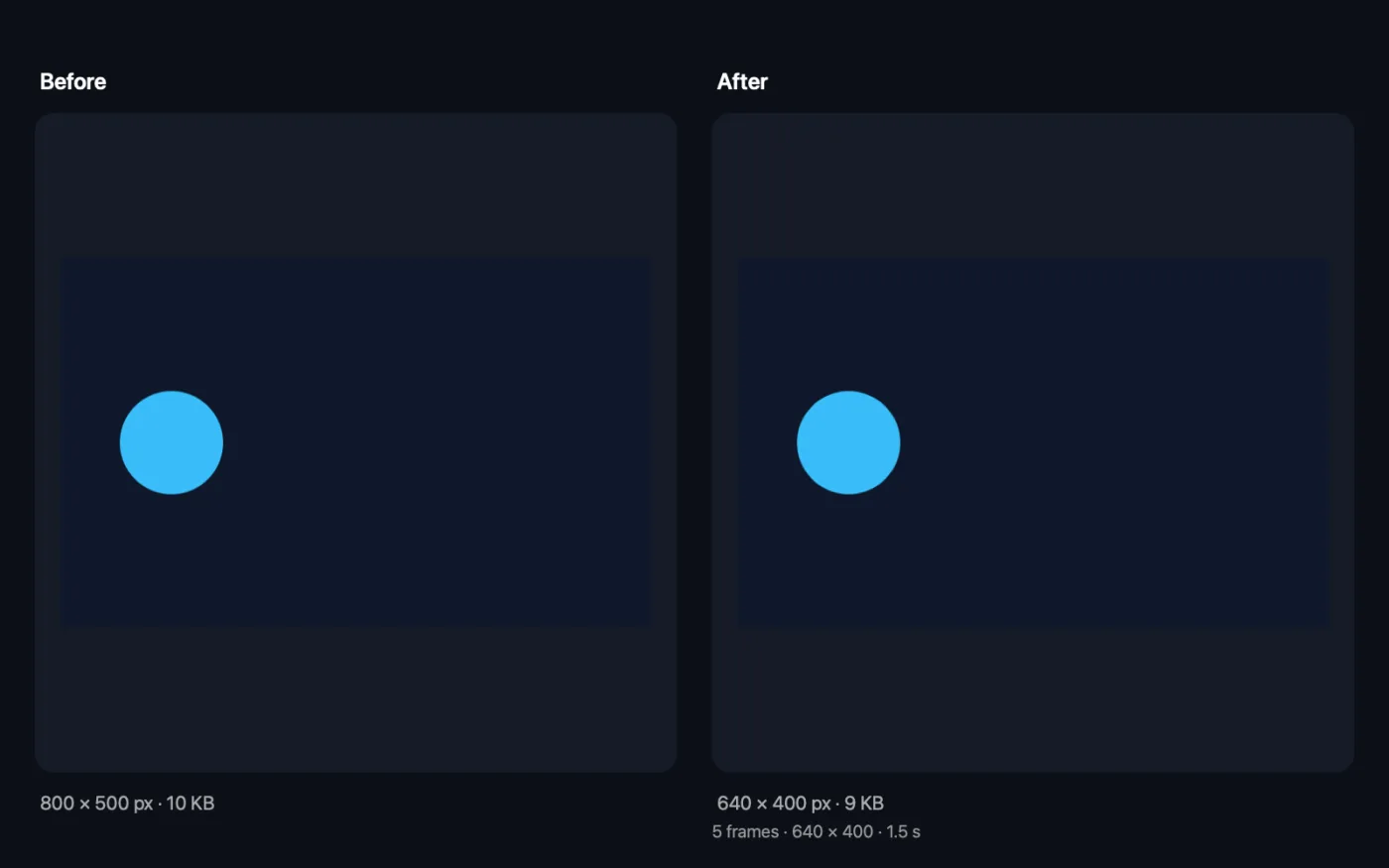
Screenshots from the app, using sample files.
How to use GIF Maker
- 1
Drop your images
Add at least two images, one per frame: photos, screenshots or drawings. Add them in the order they should play, or sort them by file name.
- 2
Set the timing
Choose how long each frame shows, from 0.1 s for smooth motion to 2 s for a slideshow.
- 3
Choose the size and colours
Pick a width and the number of colours. Smaller widths and fewer colours make a smaller file.
- 4
Choose how it plays
Loop forever, or play once.
- 5
Click Make GIF
The GIF, called “Animation”, is saved in a dated folder in Downloads › OneMacTools. Use the Preview (eye) button to watch it.
What GIF Maker does
Drop images in the order they should play, or sort them by file name. Choose how long each frame shows, the width, the number of colours and whether it loops forever or plays once. The first image sets the shape and the rest are cropped to match.
Great for
- Animate a set of product photos
- Make a how-to from screenshots
- Turn a photo burst into a GIF
Options explained
- Each frame shows for
- 0.1, 0.2, 0.3, 0.5, 1 or 2 seconds; the default is 0.5 s. Every frame gets the same time.
- Order
- As added keeps the order you dropped the files in. By file name sorts them the way Finder does, so “frame 2” comes before “frame 10”.
- Width
- Same as the first image, or 1080, 800, 640, 480 or 320 px; the default is 640 px. The height follows the first image's shape.
- Colours
- 256, 128, 64 or 32 colours per frame. Fewer colours make a smaller file; photos look best at 256 or 128, simple graphics are fine at 64 or 32.
- Play
- Forever loops the animation, which is what most people expect from a GIF. Once plays it through and stops on the last frame.
Best practices
- Name the files in order (01, 02, 03…) and choose By file name, so you don't have to drop them one by one.
- Make the first image the shape you want. Every frame is cropped to fill the first image's shape, so mismatched images lose their edges.
- For screenshots and UI how-tos, 1 or 2 seconds per frame gives people time to read.
- Keep chat and email GIFs at 480 or 640 px wide. Width has the biggest effect on file size.
- If the GIF is still too big, shrink it with Compress & Resize GIF, or convert it to a much smaller video with GIF to MP4.
Works with
- In
- Two or more images: JPEG, PNG, HEIC, TIFF, WebP and other formats your Mac can open.
- Out
- One animated GIF called “Animation”, with all frames the same size.
- The first image sets the shape; the rest are cropped to fill it.
- Choosing a width larger than your images enlarges them, which can look soft.
Questions about GIF Maker
How do I make a GIF from pictures on a Mac?
Drop two or more images onto GIF Maker, choose how long each frame shows and the width, and click Make GIF. The animated GIF is saved as a new file.
Can I use photos of different sizes?
Yes. The first image sets the shape and size; the others are cropped to fill it, so the animation stays clean.
How do I change the speed of the GIF?
Use “Each frame shows for”. 0.1 s gives quick, smooth motion; 1–2 s works like a slideshow.
How do I make the GIF smaller?
Lower the width and the number of colours. For the smallest file, convert it to video afterwards with GIF to MP4.
Can I make a GIF that doesn't loop forever?
Yes. Set Play to Once and the GIF is saved with a play count instead of an endless loop, so it stops on the last frame.
How do I put the frames in the right order?
Either drop them in the order you want and keep Order on As added, or name them in sequence and choose By file name.
Does GIF Maker upload my files?
No. GIF Maker runs entirely on your Mac, so your files never leave it and it works offline.
Will GIF Maker change my original files?
No. Results are saved as new files in a dated folder in Downloads › OneMacTools, and your originals are left exactly as they were unless you turn on an option that says otherwise.
What does GIF Maker need?
Just a Mac with macOS 26 or later. There's nothing else to install.
Do this next
Make GIFs smaller by reducing colours, dropping frames or scaling down, keeping the timing and loop.
GIF to MP4Turn GIFs into MP4 or WebM video, usually 80–95% smaller with full colour.
Related Images tools
Convert between PNG, JPEG, HEIC, AVIF and TIFF. Reads WebP, RAW and more.
Compress ImagesShrink photos for email and the web, with a live before-and-after preview.
Convert to WebPMake small, web-ready WebP images, lossy or lossless, with transparency kept.
Resize ImagesResize by longest edge, exact pixels, percentage, or print size in cm, mm or inches at the DPI you need.
Crop ImagesCrop to an aspect ratio or an exact area, or trim plain borders automatically — one photo or a whole folder.
Rotate & Flip ImagesTurn or mirror photos in one go.

GIF Maker, plus 134 more.
One app. One price.
All 135 tools for $29, once. 14-day money-back guarantee.