
Convert EPUB to PDF on Mac
Turn an e-book into a paginated PDF, chapter by chapter, with its pictures.
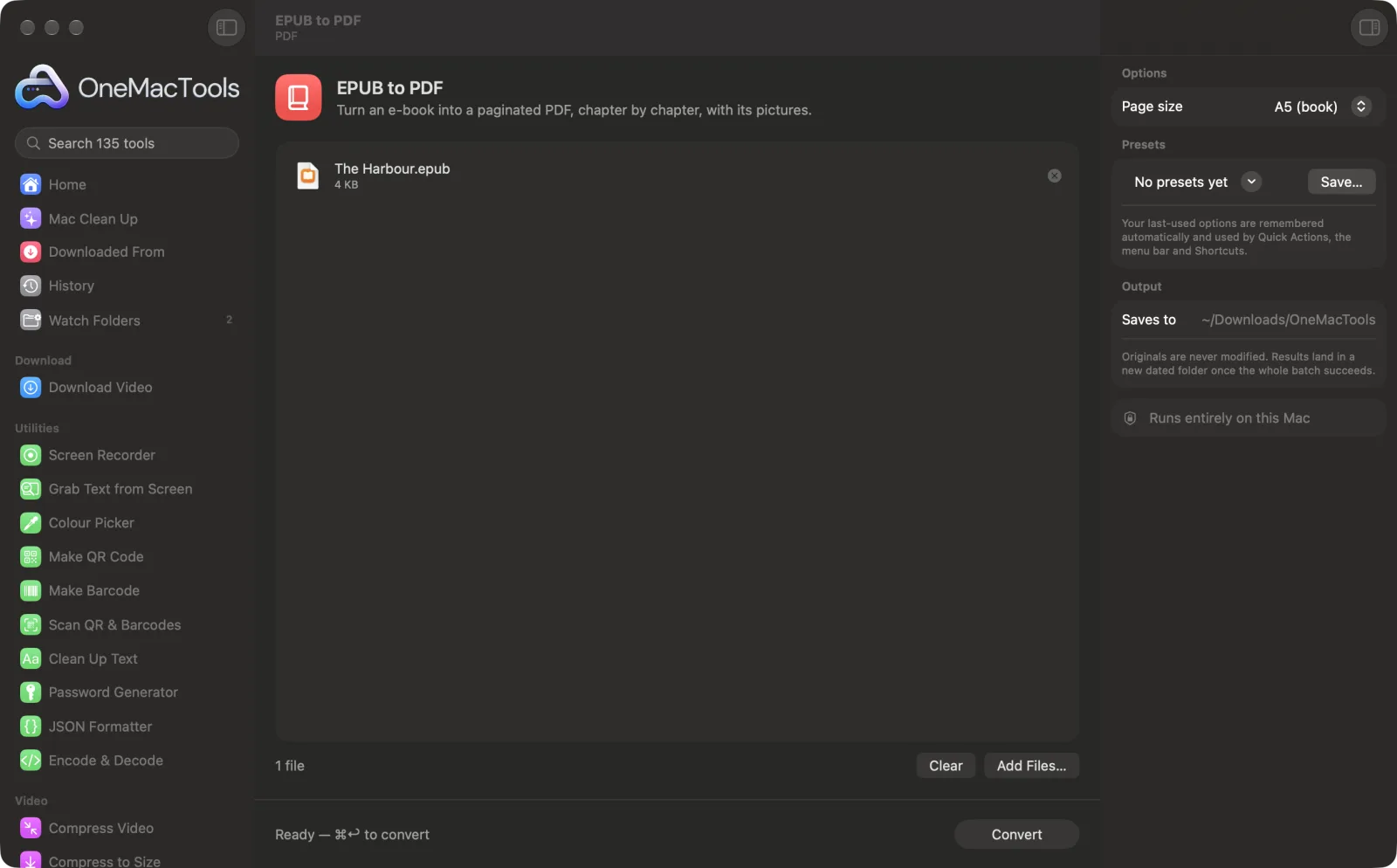
EPUB to PDF on a Mac
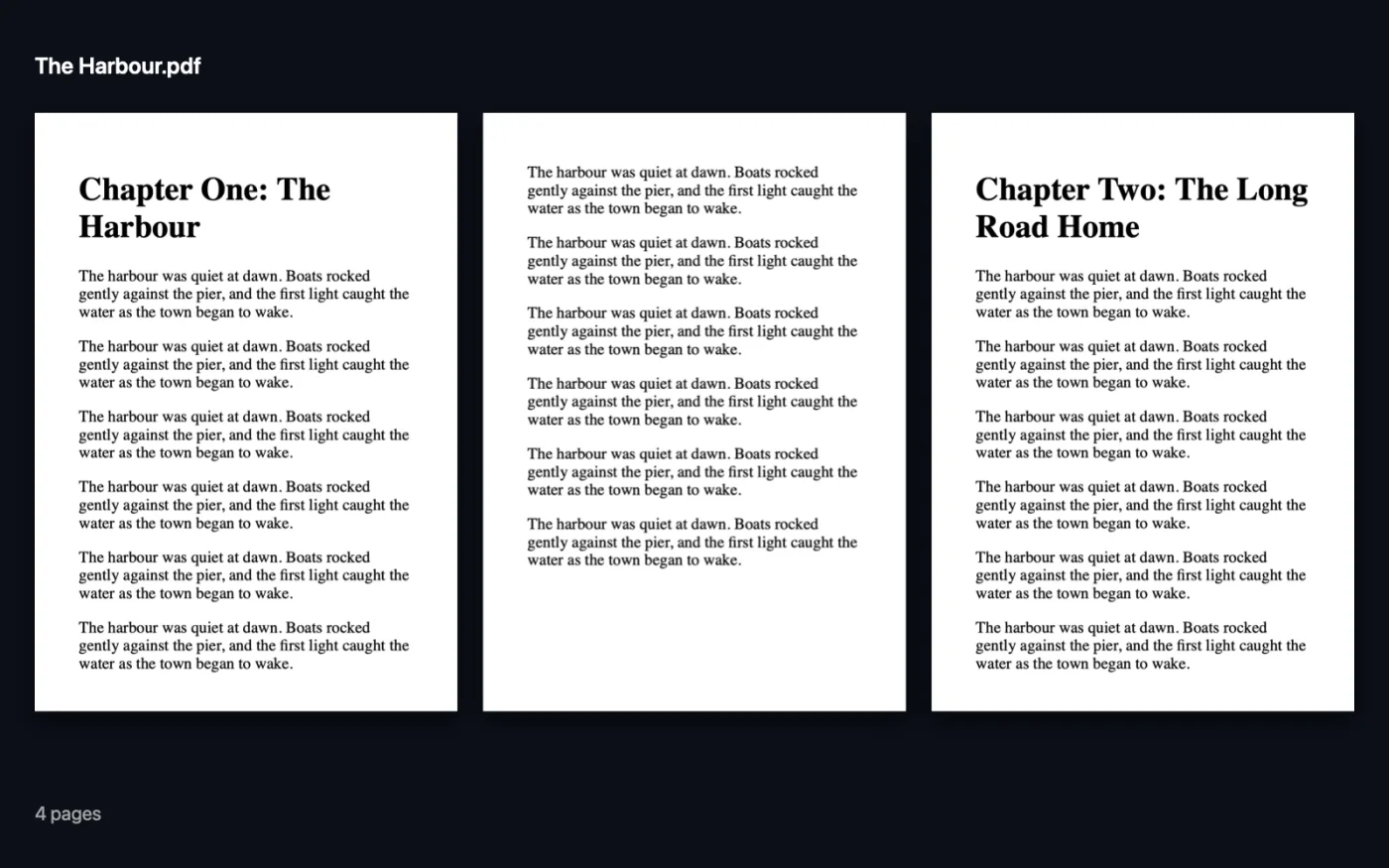
Screenshots from the app, using sample files.
How to use EPUB to PDF
- 1
Add the book
Drop one or more EPUB files onto EPUB to PDF.
- 2
Pick a page size
In the right-hand panel, choose A5 (book), A4 or US Letter.
- 3
Convert
Click Convert. The chapters are laid out one after another in reading order, with their pictures.
- 4
Open the PDF
It's saved in a dated folder in Downloads › OneMacTools with the book's file name.
What EPUB to PDF does
OneMacTools reads the book's chapters in their proper order and lays each one out on book-sized (A5), A4 or US Letter pages, with images. DRM-protected books can't be converted.
Great for
- Print a chapter of an e-book
- Read an EPUB in a PDF app
- Annotate a book in Preview
Options explained
- Page size
- A5 (book), the default, gives book-like pages that read well on a tablet. A4 or US Letter suit printing on standard paper.
Best practices
- Choose A5 for reading on an iPad or in a PDF app; the text is a comfortable size on screen.
- Choose A4 or US Letter if you're going to print. Then use PDF Pages per Sheet to put two book pages on each sheet and save paper.
- Each chapter starts on a new page, as in a printed book.
- Books with DRM, such as most bought from online stores, can't be converted. DRM-free books, like many from public-domain libraries, work well.
- Large books take a while because every chapter is laid out separately. The progress bar shows how far it has got.
Works with
- In
- DRM-free EPUB books.
- Out
- One PDF per book, with selectable text and pictures, at A5, A4 or US Letter.
- DRM-protected books can't be converted.
- Lines aren't split across pages; each page break is moved to a gap between lines.
Questions about EPUB to PDF
How do I convert an EPUB to PDF on a Mac?
Drop the EPUB onto EPUB to PDF, choose a page size and click Convert. The whole book is laid out as a PDF, chapter by chapter.
Can I convert books with DRM?
No. DRM-protected books are locked so only approved apps can read them. DRM-free EPUBs convert fine.
Are the pictures kept?
Yes. Images in the book are included where they appear in each chapter.
Can I select and search the text in the PDF?
Yes. The text stays as real text, so you can search, highlight and copy it in any PDF app.
What page size should I choose for an e-book?
A5 (book) is closest to a paperback and reads well on a tablet. Pick A4 or US Letter if you'll print it.
Does the PDF keep the book's chapters?
The chapters appear in their proper order, each starting on a new page. The book's table of contents isn't turned into PDF bookmarks.
Does EPUB to PDF upload my files?
No. EPUB to PDF runs entirely on your Mac, so your files never leave it and it works offline.
Will EPUB to PDF change my original files?
No. Results are saved as new files in a dated folder in Downloads › OneMacTools, and your originals are left exactly as they were unless you turn on an option that says otherwise.
What does EPUB to PDF need?
Just a Mac with macOS 26 or later. There's nothing else to install.
Do this next
Put 2, 4, 6 or 9 pages on each sheet to save paper.
Compress PDFShrink image-heavy PDFs for email and upload.
SummarizeGet the short version of long documents from Apple Intelligence's on-device model.
Related PDF tools
Combine PDFs into one, in the order you choose, or alternate pages to join front and back scans.
Split PDFSplit by pages, chapters (bookmarks), file size or where a word appears, or cut two-page scans in half.
Organize PDFReverse, reorder or split out odd and even pages.
Delete PagesRemove the pages you don't need.
Extract PagesPull the pages you want out into a new PDF.
Rotate PDF PagesTurn or flip some or all pages.

EPUB to PDF, plus 134 more.
One app. One price.
All 135 tools for $29, once. 14-day money-back guarantee.