
Edit PDF metadata and remove annotations on Mac
Set the title, author and keywords; clear hidden details; remove comments and links.
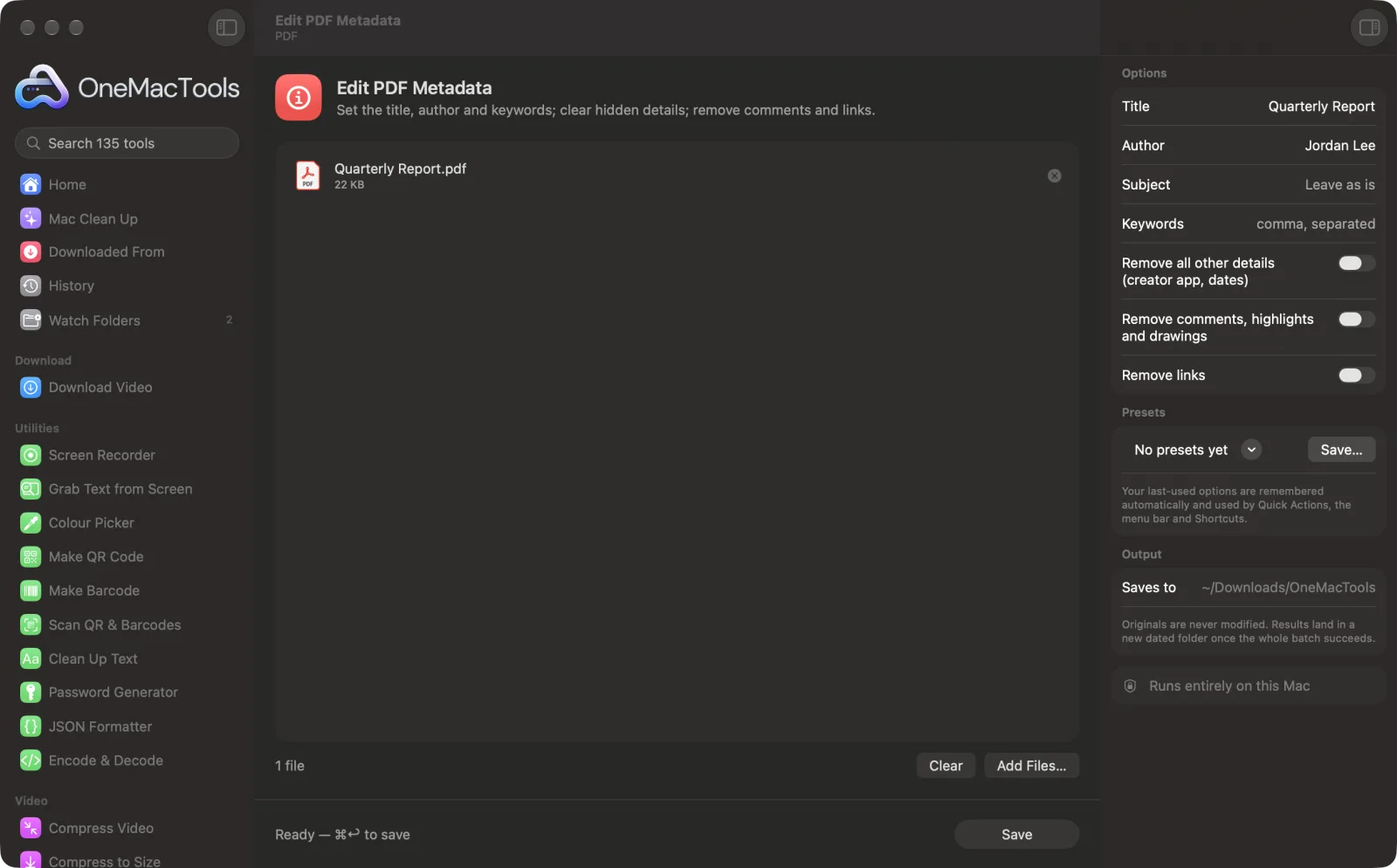
Edit PDF Metadata on a Mac
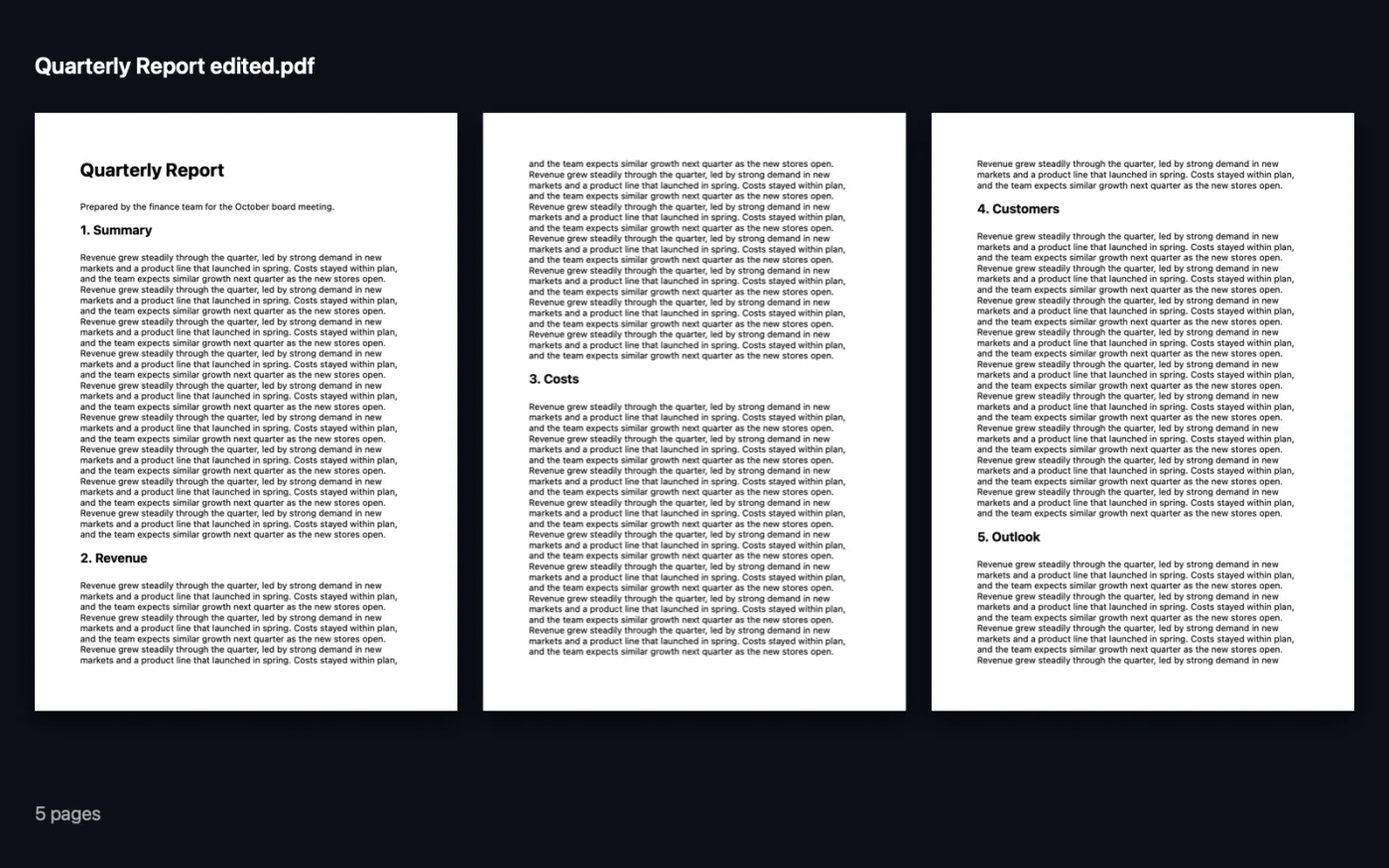
Screenshots from the app, using sample files.
How to use Edit PDF Metadata
- 1
Add the PDF
Drop one or more PDFs onto Edit PDF Metadata.
- 2
Fill in the details
In the right-hand panel, type a Title, Author, Subject or Keywords. Leave a box empty to keep what's already there.
- 3
Choose what to remove
Turn on the switches to remove other hidden details, comments and highlights, or links.
- 4
Save
Click Save. The edited copy is saved with “edited” in its name in a dated folder in Downloads › OneMacTools, and the app tells you how many annotations were removed.
What Edit PDF Metadata does
Change the title, author, subject and keywords stored in a PDF, which search engines and libraries show. Remove hidden details like the app that made it, and strip comments, highlights, drawings and links before you share it.
Great for
- Give a published PDF a proper title for Google
- Remove reviewers' comments before sending a contract
- Strip tracking links from a document
Options explained
- Title
- The document title that PDF readers, search engines and libraries show. Leave it empty to keep the current one.
- Author
- The author name stored in the file. Leave it empty to keep the current one.
- Subject
- A short description of the document. Leave it empty to keep the current one.
- Keywords
- Search words, separated by commas, such as invoice, 2026, client. Leave it empty to keep the current ones.
- Remove all other details (creator app, dates)
- Off by default. Clears the other stored details, such as the app that made the PDF and its dates, keeping only the title, author, subject and keywords.
- Remove comments, highlights and drawings
- Off by default. Deletes notes, highlights, underlines, stamps and drawings. Form fields and links are kept.
- Remove links
- Off by default. Removes clickable links, including web links and links to other pages.
Best practices
- Set a proper Title on any PDF you publish on a website. Browsers and search results often show it instead of the file name.
- Before sending a contract, turn on Remove comments, highlights and drawings so reviewers' notes don't go with it.
- To check what a PDF contains, open it in Preview and choose Tools › Show Inspector.
- You can process a batch: the same title or author is applied to every PDF you add, so leave Title empty when files need their own.
- Removing comments doesn't touch the page text. To hide words on the page, use Redact PDF.
Works with
- In
- PDF files, one or many at once.
- Out
- An edited copy of each PDF, named “<name> edited”.
- Password-protected PDFs need the password removed first.
Questions about Edit PDF Metadata
How do I change the title of a PDF on a Mac?
Drop the PDF onto Edit PDF Metadata, type the new title in Title and click Save. The edited copy shows that title in PDF readers and search results.
How do I change the author name on a PDF?
Type the new name in Author and click Save. An empty box keeps the existing author, so to hide a personal name, replace it with something neutral such as your company name.
How do I remove all comments and highlights from a PDF?
Turn on Remove comments, highlights and drawings and click Save. Every annotation goes, while form fields and links stay.
Can I remove links from a PDF?
Yes. Turn on Remove links. The text stays, but it's no longer clickable.
What is PDF metadata?
Details stored inside the file, such as its title, author, subject, keywords, the app that made it and when. They're not shown on the page but anyone can read them.
Will this change the text on the pages?
No. Only the stored details and the annotations you choose to remove are changed.
Does Edit PDF Metadata upload my files?
No. Edit PDF Metadata runs entirely on your Mac, so your files never leave it and it works offline.
Will Edit PDF Metadata change my original files?
No. Results are saved as new files in a dated folder in Downloads › OneMacTools, and your originals are left exactly as they were unless you turn on an option that says otherwise.
What does Edit PDF Metadata need?
Just a Mac with macOS 26 or later. There's nothing else to install.
Do this next
Black out names, emails, phone and card numbers, removed for real and not just covered.
Remove MetadataStrip location, camera and other EXIF data before sharing.
Compress PDFShrink image-heavy PDFs for email and upload.
Related PDF tools
Combine PDFs into one, in the order you choose, or alternate pages to join front and back scans.
Split PDFSplit by pages, chapters (bookmarks), file size or where a word appears, or cut two-page scans in half.
Organize PDFReverse, reorder or split out odd and even pages.
Delete PagesRemove the pages you don't need.
Extract PagesPull the pages you want out into a new PDF.
Rotate PDF PagesTurn or flip some or all pages.

Edit PDF Metadata, plus 134 more.
One app. One price.
All 135 tools for $29, once. 14-day money-back guarantee.