
Compare two PDFs or documents on Mac
See what changed between two versions of a PDF, Word or text file, in a report PDF.
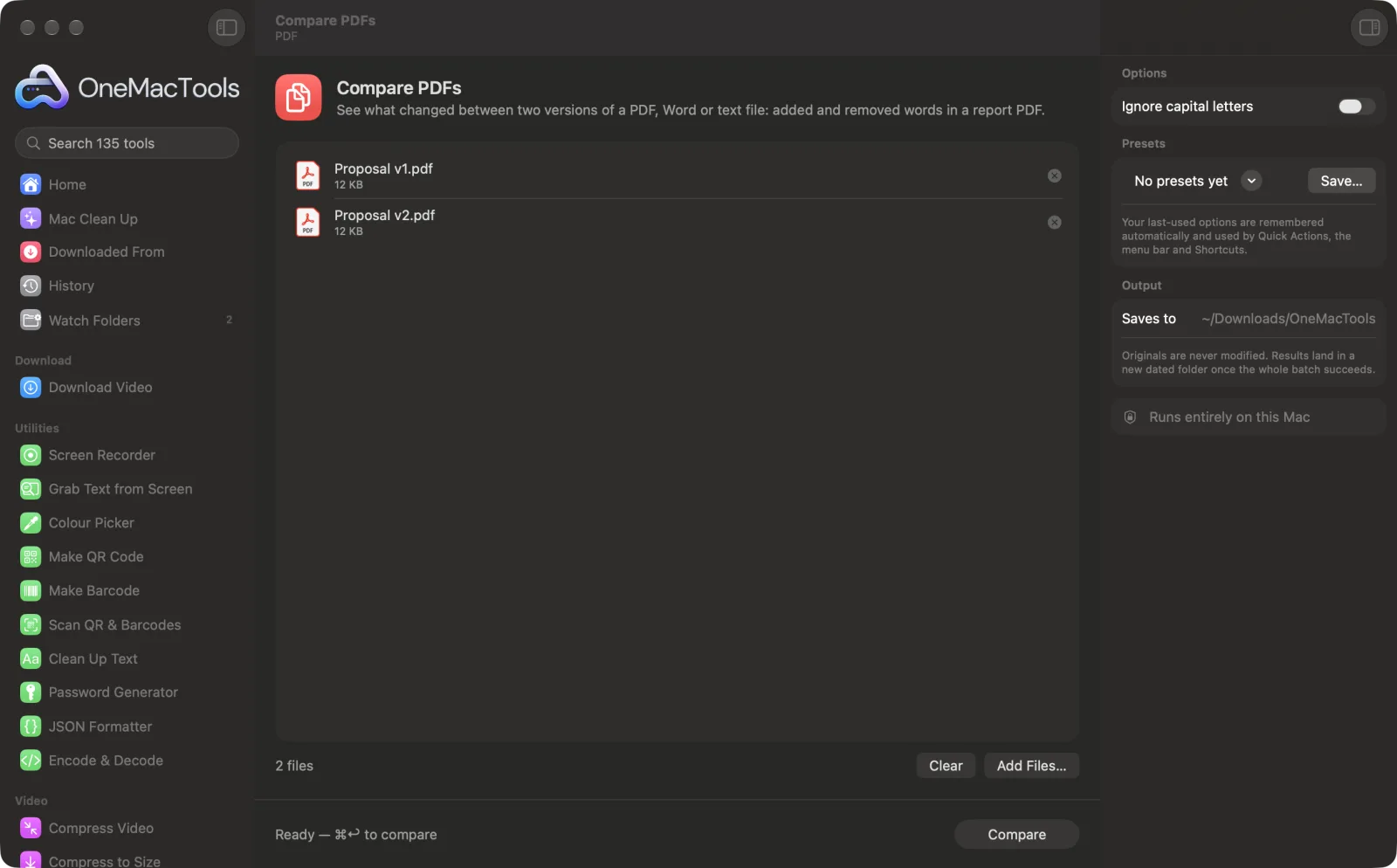
Compare PDFs on a Mac
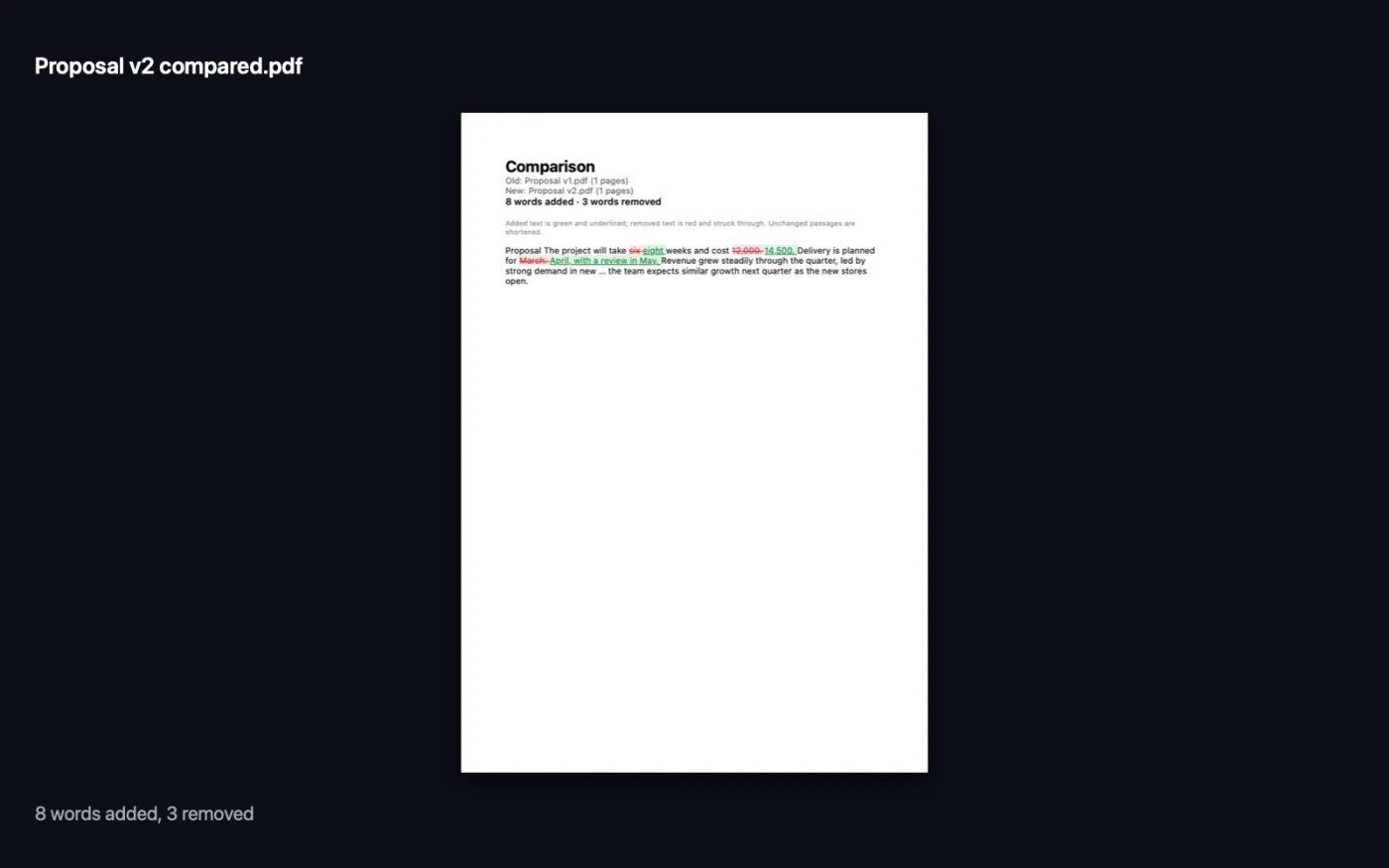
Screenshots from the app, using sample files.
How to use Compare PDFs
- 1
Add the old version first
Drop the older file onto Compare PDFs, then the newer one. The order matters: the first file is treated as old, the second as new.
- 2
Check the order
If they're the wrong way round, drag them in the list so the old version is on top.
- 3
Choose about capitals
Turn on Ignore capital letters if changes in case shouldn't count.
- 4
Compare
Click Compare. The app tells you how many words were added and removed.
- 5
Read the report
A report PDF, named after the new file with “compared”, is saved in Downloads › OneMacTools. Added words are green and underlined; removed words are red and struck through.
What Compare PDFs does
Add the old version and then the new one: PDFs, Word documents, text or Markdown. OneMacTools compares their text word by word and makes a report PDF: added words in green, removed words in red and struck through, with long unchanged passages shortened so the changes stand out. Scanned PDFs need Make PDF Searchable first.
Great for
- Check what a counterparty changed in a contract
- Review edits between two drafts
- Confirm a policy update says what was agreed
Options explained
- Ignore capital letters
- Off by default. Turn it on so “Tenant” and “tenant” count as the same word, and only real wording changes are shown.
Best practices
- You can compare across formats, for example a Word draft against the PDF that came back for signing.
- Long unchanged passages are shortened in the report, so the changes stand out. Keep the original files for full context.
- Compare PDFs looks at wording only. Changes to fonts, layout, images or numbers inside pictures won't show.
- Scanned PDFs have no text to compare. Run them through Make PDF Searchable first.
- Check the report summary line: if it says there are no differences in the text, the wording is identical even if the layout moved.
Works with
- In
- Exactly two files: PDF, Word (.docx or .doc), OpenDocument text (.odt), RTF, HTML, Markdown, plain text or subtitles (.srt), in any combination.
- Out
- A report PDF showing added and removed words, with a count of each.
- Compares the text, word by word, not the look of the pages.
- Scanned PDFs need Make PDF Searchable first.
Questions about Compare PDFs
How do I compare two PDFs for differences on a Mac?
Drop the old PDF, then the new one, onto Compare PDFs and click Compare. You get a report PDF with added words in green and removed words in red.
Can I compare a Word document with a PDF?
Yes. Each file's text is read whatever its format, so you can compare a .docx draft with the PDF that was sent back.
Does it show formatting or layout changes?
No. It compares the words only, so a moved paragraph break or a new font won't show, but every added or removed word will.
Why does it say neither PDF has text to compare?
The PDFs are probably scans, which are pictures of text. Run them through Make PDF Searchable first, then compare again.
Can I compare more than two files?
No. Add exactly two: the old version first, then the new one. To check several drafts, compare them in pairs.
How do I see what someone changed in a contract?
Compare the version you sent with the one you got back. Every added or deleted word is highlighted, so changes buried in long clauses are easy to spot.
Does Compare PDFs upload my files?
No. Compare PDFs runs entirely on your Mac, so your files never leave it and it works offline.
Will Compare PDFs change my original files?
No. Results are saved as new files in a dated folder in Downloads › OneMacTools, and your originals are left exactly as they were unless you turn on an option that says otherwise.
What does Compare PDFs need?
Just a Mac with macOS 26 or later. There's nothing else to install.
Do this next
Black out names, emails, phone and card numbers, removed for real and not just covered.
Sign PDFType your name, or drop a signature image with the PDF, and place it on the page.
Make PDF SearchableAdd an invisible OCR text layer to scanned PDFs so you can search, select and copy their text.
Related PDF tools
Combine PDFs into one, in the order you choose, or alternate pages to join front and back scans.
Split PDFSplit by pages, chapters (bookmarks), file size or where a word appears, or cut two-page scans in half.
Organize PDFReverse, reorder or split out odd and even pages.
Delete PagesRemove the pages you don't need.
Extract PagesPull the pages you want out into a new PDF.
Rotate PDF PagesTurn or flip some or all pages.

Compare PDFs, plus 134 more.
One app. One price.
All 135 tools for $29, once. 14-day money-back guarantee.