
Get a colour palette from an image on Mac
Pull the main colours from an image as a swatch card, CSS variables and an Adobe palette.
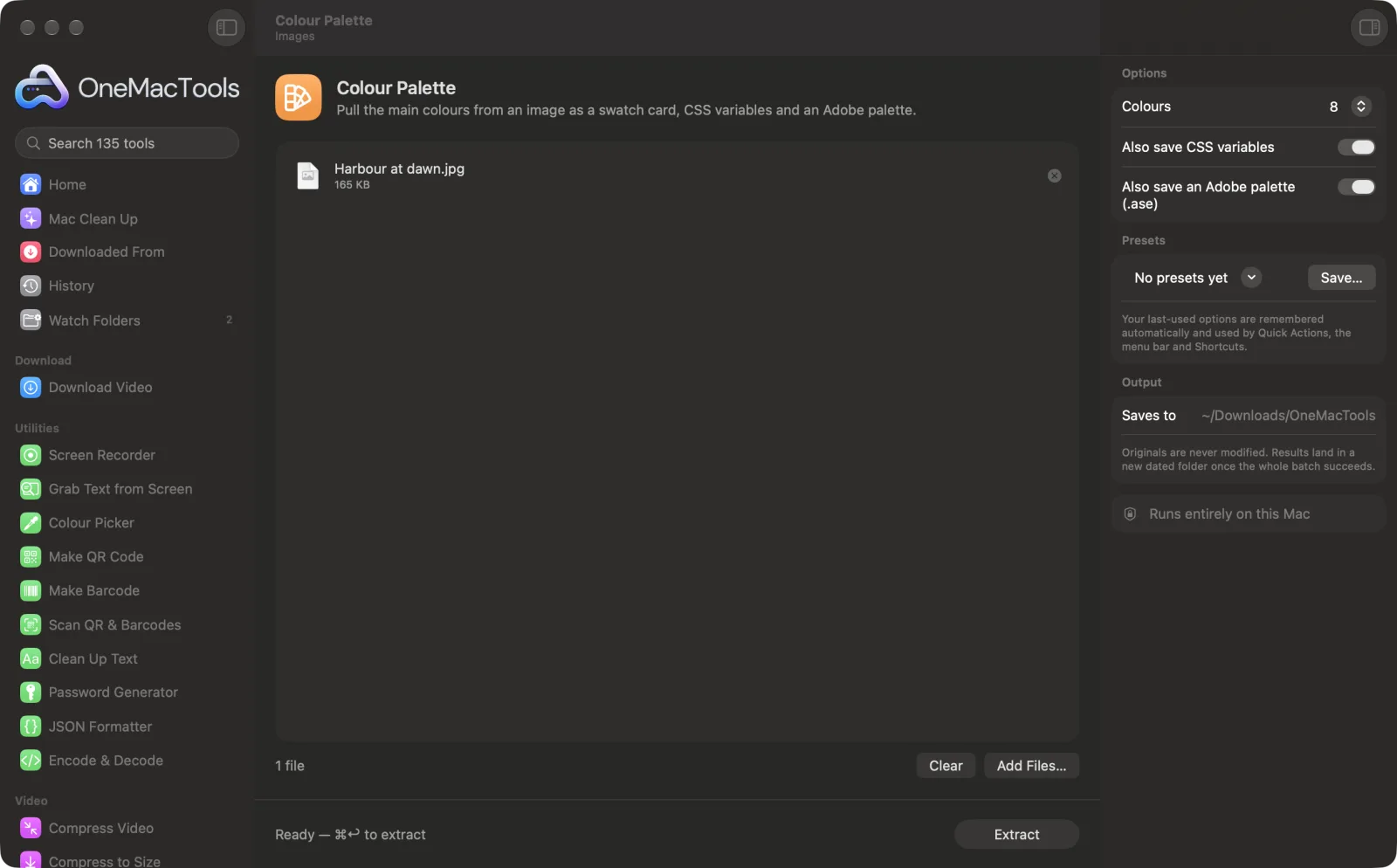
Colour Palette on a Mac
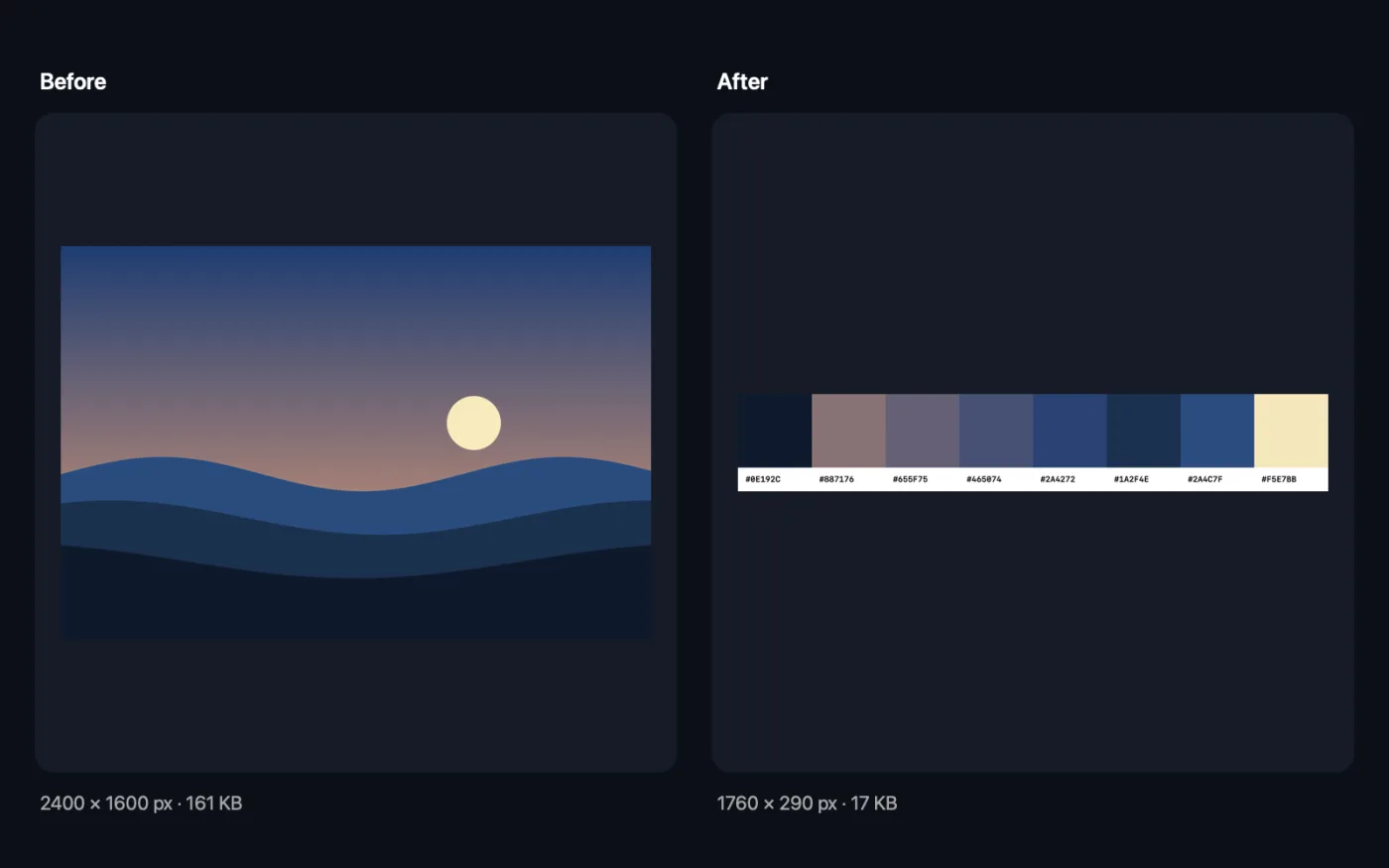
Screenshots from the app, using sample files.
How to use Colour Palette
- 1
Drop an image
A photo, logo, artwork or screenshot. You can add several, and each gets its own palette.
- 2
Choose how many colours
5 for a simple scheme, 8 for a fuller one, or 12 to capture more variety.
- 3
Choose the extras
Keep CSS variables for your website and the Adobe palette (.ase) for Photoshop, Illustrator and InDesign, or turn them off.
- 4
Click Extract
The colours appear in the app as hex codes, most common first, and are saved as a swatch card.
- 5
Use the files
The swatch card PNG, CSS file and .ase file are saved in a new dated folder in Downloads › OneMacTools. Open them with the Preview (eye) button or Show in Finder.
What Colour Palette does
OneMacTools finds the main colours in an image, most common first, and saves a swatch card with hex codes. Optionally save CSS custom properties for your website and an Adobe Swatch Exchange (.ase) file for Photoshop, Illustrator and InDesign.
Great for
- Build a website palette from a brand photo
- Match colours for a presentation
- Share a moodboard's colours with a designer
Options explained
- Colours
- 5, 8 (the default) or 12. The most common colours come first. Very similar colours are merged, so a simple image may give you fewer than you asked for.
- Also save CSS variables
- On by default. Saves a .css file with each colour as a custom property, from --palette-1 to the last, ready to paste into your stylesheet.
- Also save an Adobe palette (.ase)
- On by default. Saves an Adobe Swatch Exchange file you can load into the Swatches panel of Photoshop, Illustrator or InDesign.
Best practices
- Crop to the part you care about first. A big sky or plain wall will dominate the palette.
- Ask for more colours than you need, then pick the ones that work together. The most common colours aren't always the most striking.
- Check text and background pairs for contrast before using them on a website. A palette from a photo isn't designed for readability.
- To grab a single exact colour from your screen, use Colour Picker instead.
Works with
- In
- Photos, logos, artwork and screenshots in any format macOS can open.
- Out
- A PNG swatch card with hex codes, plus an optional .css file and an optional .ase Adobe palette.
- The image is scaled down before the colours are found, so small details and thin lines have little effect on the result.
Questions about Colour Palette
How do I get the colour palette from an image?
Drop the image onto Colour Palette, choose 5, 8 or 12 colours and click Extract. You get the hex codes, a swatch card, CSS variables and an Adobe palette.
How do I use the colours in my website?
Open the .css file and copy the :root block into your stylesheet. Then use var(--palette-1) and so on wherever you need a colour.
How do I import the palette into Photoshop or Illustrator?
Open the Swatches panel, choose Import Swatches or Open Swatch Library › Other Library, and pick the .ase file.
Why did I get fewer colours than I chose?
Colours that are almost the same are merged so the palette doesn't repeat itself. An image with few distinct colours gives a shorter palette.
What order are the colours in?
Most common first, so the first colour covers the largest part of the image.
Does Colour Palette upload my files?
No. Colour Palette runs entirely on your Mac, so your files never leave it and it works offline.
Will Colour Palette change my original files?
No. Results are saved as new files in a dated folder in Downloads › OneMacTools, and your originals are left exactly as they were unless you turn on an option that says otherwise.
What does Colour Palette need?
Just a Mac with macOS 26 or later. There's nothing else to install.
Do this next
Pick any pixel on screen and copy its colour as HEX, RGB, HSL or code.
Crop ImagesCrop to an aspect ratio or an exact area, or trim plain borders automatically — one photo or a whole folder.
Placeholder GeneratorMake BlurHash strings, tiny blurred thumbnails and average colours to show while images lazy-load.
Related Images tools
Convert between PNG, JPEG, HEIC, AVIF and TIFF. Reads WebP, RAW and more.
Compress ImagesShrink photos for email and the web, with a live before-and-after preview.
Convert to WebPMake small, web-ready WebP images, lossy or lossless, with transparency kept.
Resize ImagesResize by longest edge, exact pixels, percentage, or print size in cm, mm or inches at the DPI you need.
Rotate & Flip ImagesTurn or mirror photos in one go.
Screenshot BeautifierPut screenshots on a gradient with padding, rounded corners and a soft shadow.

Colour Palette, plus 134 more.
One app. One price.
All 135 tools for $29, once. 14-day money-back guarantee.