
Convert PDF to PowerPoint on Mac
Turn each page into a slide (.pptx) that opens in PowerPoint, Keynote and Google Slides.
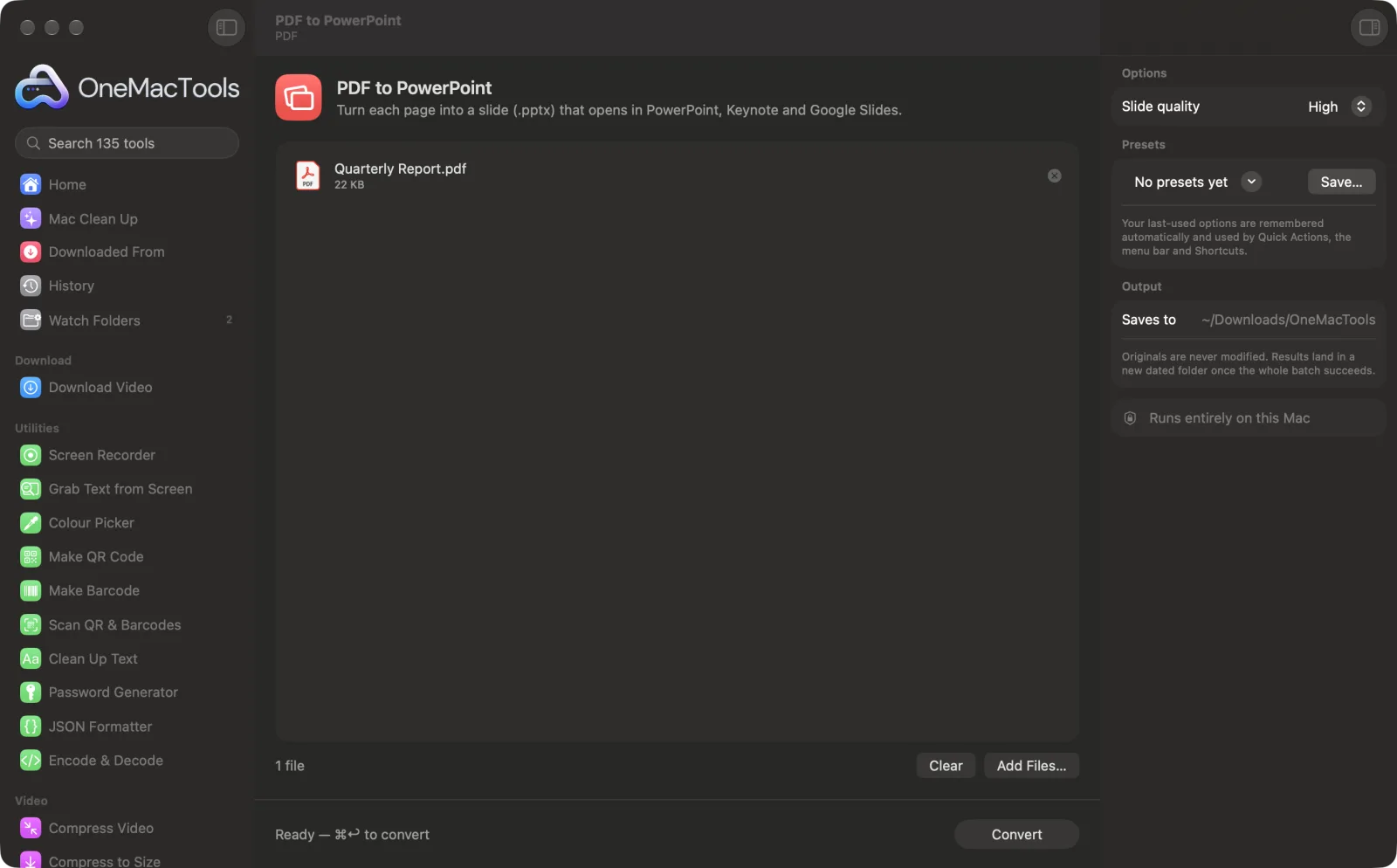
PDF to PowerPoint on a Mac

Screenshots from the app, using sample files.
How to use PDF to PowerPoint
- 1
Add the PDF
Drop one or more PDFs onto PDF to PowerPoint.
- 2
Choose the quality
In the right-hand panel, pick Standard or High slide quality.
- 3
Convert
Click Convert. Each page becomes one full-size slide.
- 4
Open the deck
The .pptx file is saved in a dated folder in Downloads › OneMacTools. It opens in PowerPoint, Keynote and Google Slides.
What PDF to PowerPoint does
Every page of the PDF becomes a full-size slide in a .pptx file, at standard or high quality, so you can present it, rearrange it or add your own slides.
Great for
- Present a PDF report in a meeting
- Reuse pages of a brochure in a deck
- Add speaker notes to a PDF presentation
Options explained
- Slide quality
- High (the default) renders each page sharply enough for a large screen or projector. Standard makes a smaller file that's quicker to email.
Best practices
- Each slide is a picture of the page, so the text can't be edited on the slide. Add your own text boxes, notes or extra slides around it.
- The slide size is taken from the first page. Pages with a different shape are fitted onto the slide with white space around them, never stretched.
- If a PDF has portrait pages mixed with landscape ones, convert them separately, using Split PDF or Extract PDF Pages first.
- Use High quality for anything shown on a projector; small text stays readable.
- If you need the words to edit, use PDF to Text & Word alongside the deck.
Works with
- In
- PDF files, such as slides exported from another app, reports or brochures.
- Out
- A .pptx presentation with one full-bleed slide per page.
- Slides are images of the pages, so text isn't editable.
- Every slide uses the size and shape of the first page; other shapes are fitted with white space around them.
Questions about PDF to PowerPoint
How do I convert a PDF to PowerPoint on a Mac?
Drop the PDF onto PDF to PowerPoint and click Convert. You get a .pptx with one slide per page, ready to open in PowerPoint or Keynote.
Can I edit the text on the slides?
No. Each slide is a high-quality picture of the page. You can add text boxes, speaker notes and new slides, but the original text isn't editable.
Will it open in Keynote and Google Slides?
Yes. The .pptx file opens in PowerPoint, Keynote and Google Slides.
Can I present a PDF as a slideshow?
Yes. Convert it and open the .pptx in Keynote or PowerPoint, then present it like any other deck.
Which quality should I choose?
High for projectors and big screens, Standard for a smaller file that's easier to email.
What happens to pages with a different shape?
Every slide takes the shape of the first page. Pages with another shape are fitted onto the slide with white space around them, so nothing is stretched.
Does PDF to PowerPoint upload my files?
No. PDF to PowerPoint runs entirely on your Mac, so your files never leave it and it works offline.
Will PDF to PowerPoint change my original files?
No. Results are saved as new files in a dated folder in Downloads › OneMacTools, and your originals are left exactly as they were unless you turn on an option that says otherwise.
What does PDF to PowerPoint need?
Just a Mac with macOS 26 or later. There's nothing else to install.
Do this next
Export every page as a PNG or JPEG.
PDF to Text & WordGet the text out of a PDF as a Word document, plain text or RTF. Scanned pages are read with OCR.
Compress PDFShrink image-heavy PDFs for email and upload.
Related PDF tools
Combine PDFs into one, in the order you choose, or alternate pages to join front and back scans.
Split PDFSplit by pages, chapters (bookmarks), file size or where a word appears, or cut two-page scans in half.
Organize PDFReverse, reorder or split out odd and even pages.
Delete PagesRemove the pages you don't need.
Extract PagesPull the pages you want out into a new PDF.
Rotate PDF PagesTurn or flip some or all pages.

PDF to PowerPoint, plus 134 more.
One app. One price.
All 135 tools for $29, once. 14-day money-back guarantee.