
Extract images from a PDF on Mac
Save every picture inside a PDF at its original quality.
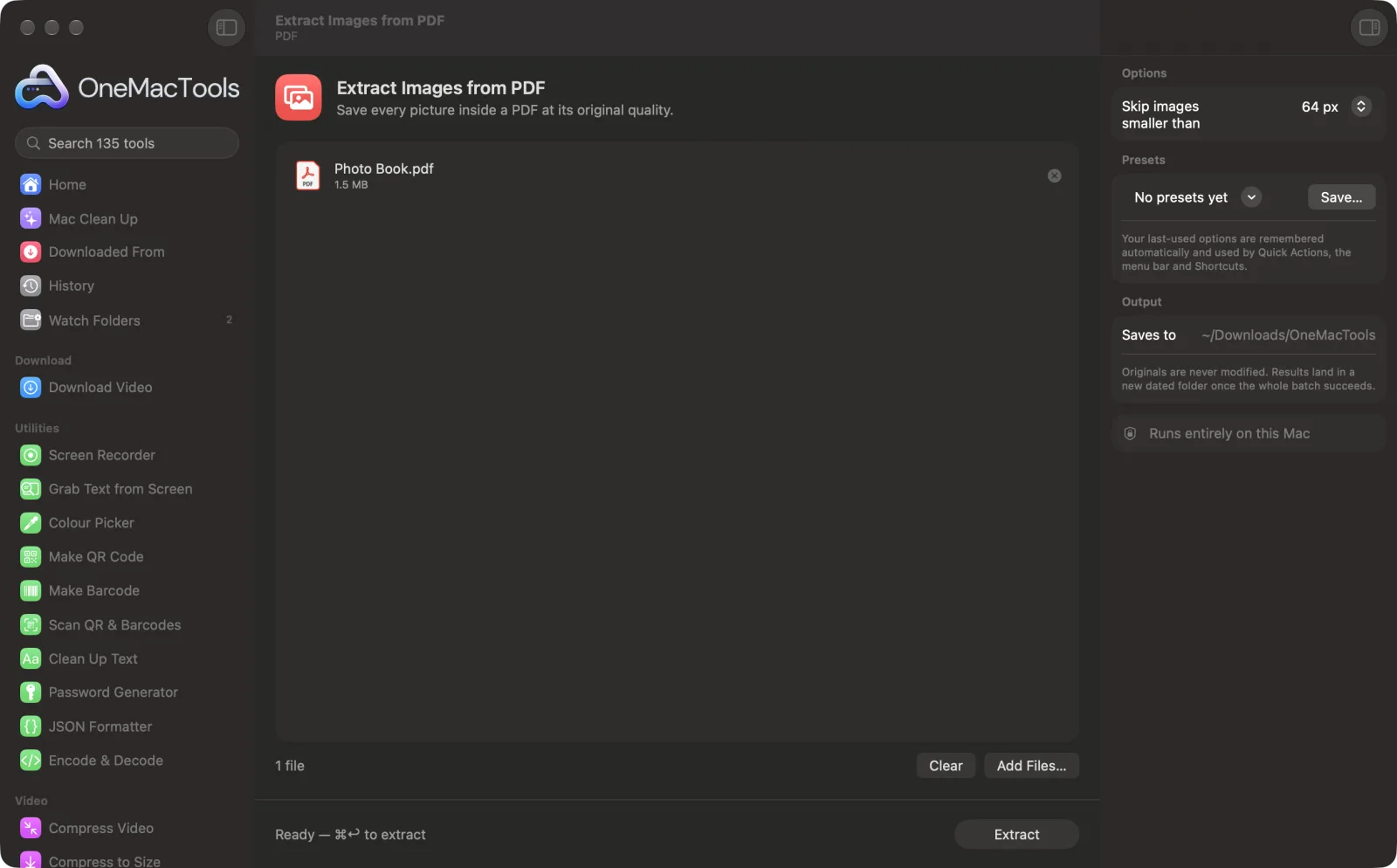
Extract Images from PDF on a Mac
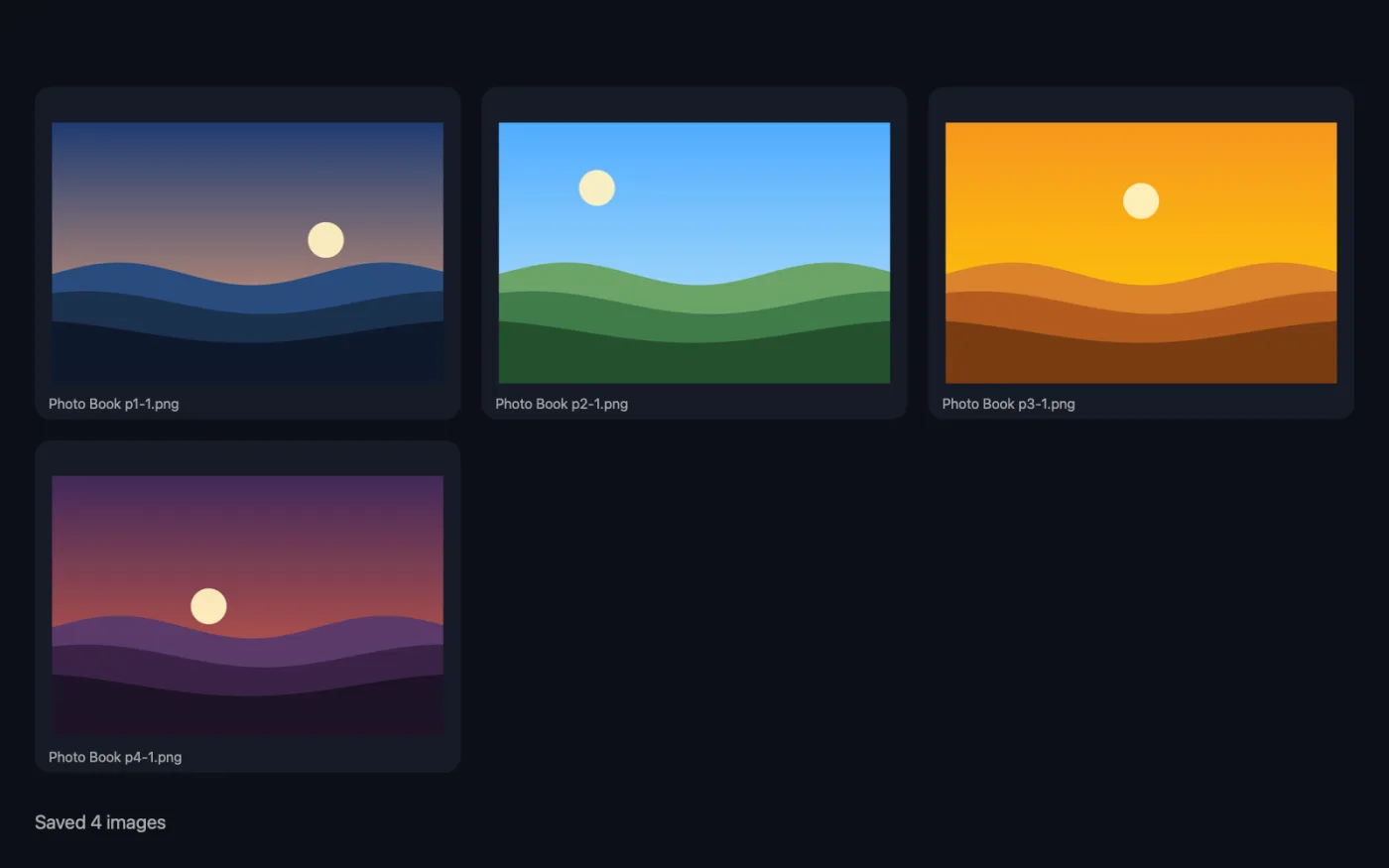
Screenshots from the app, using sample files.
How to use Extract Images from PDF
- 1
Add the PDF
Drop one or more PDFs onto Extract Images from PDF.
- 2
Skip the small stuff
In the right-hand panel, choose whether to skip small images such as icons and bullets.
- 3
Extract
Click Extract. Every picture stored in the PDF is saved as its own file.
- 4
Find your images
They're saved in a dated folder in Downloads › OneMacTools, named after the PDF with the page number, for example “Brochure p3-1”.
What Extract Images from PDF does
OneMacTools pulls the photos and graphics out of a PDF as they are stored, so JPEGs come out at their original quality and size, not as screenshots of the page. Repeated images, like a logo on every page, are saved once. Small icons can be skipped.
Great for
- Get the photos out of a brochure or report
- Reuse product images from a catalogue
- Recover pictures from an old presentation exported to PDF
Options explained
- Skip images smaller than
- Keep all, 64 px (the default) or 200 px. An image is skipped when its shorter side is below the size you choose. 64 px drops icons and bullets; 200 px also drops thumbnails and small logos.
Best practices
- JPEG photos are saved byte for byte as they're stored in the PDF, so there's no further loss of quality.
- A logo or background repeated on every page is saved only once.
- If nothing is found, the PDF is probably a scan, where each page is one big picture. Use PDF to Images for those.
- Choose Keep all if you're after small graphics like signatures or stamps.
- Images are saved at the resolution they were embedded at, which may be smaller than the original photo if the PDF was compressed.
Works with
- In
- PDF files, one or many at once.
- Out
- The pictures inside, as JPEG, JPEG 2000 (.jp2) or PNG, depending on how each was stored.
- Pictures in unusual colour formats may be skipped.
- Transparency and masks applied in the PDF aren't kept.
Questions about Extract Images from PDF
How do I get pictures out of a PDF on a Mac?
Drop the PDF onto Extract Images from PDF and click Extract. Every photo and graphic inside is saved as its own file in Downloads › OneMacTools.
Are the images saved at full quality?
Yes. They're taken out as they're stored in the PDF, not screenshotted, so JPEGs keep their original size and quality.
Why were no images found?
The PDF is probably scanned, so each page is one whole-page picture rather than separate images. Use PDF to Images to save each page as an image.
How do I stop it saving lots of tiny icons?
Set Skip images smaller than to 64 px or 200 px. Anything with a shorter side below that is left out.
Why is the same logo only saved once?
Identical images are detected and saved once, so a logo on every page doesn't give you dozens of copies.
What is a .jp2 file?
It's JPEG 2000, a format some PDFs use for pictures. Preview opens it, and Convert Images can turn it into JPEG or PNG.
Does Extract Images from PDF upload my files?
No. Extract Images from PDF runs entirely on your Mac, so your files never leave it and it works offline.
Will Extract Images from PDF change my original files?
No. Results are saved as new files in a dated folder in Downloads › OneMacTools, and your originals are left exactly as they were unless you turn on an option that says otherwise.
What does Extract Images from PDF need?
Just a Mac with macOS 26 or later. There's nothing else to install.
Do this next
Convert between PNG, JPEG, HEIC, AVIF and TIFF. Reads WebP, RAW and more.
Compress ImagesShrink photos for email and the web, with a live before-and-after preview.
PDF to ImagesExport every page as a PNG or JPEG.
Related PDF tools
Combine PDFs into one, in the order you choose, or alternate pages to join front and back scans.
Split PDFSplit by pages, chapters (bookmarks), file size or where a word appears, or cut two-page scans in half.
Organize PDFReverse, reorder or split out odd and even pages.
Delete PagesRemove the pages you don't need.
Extract PagesPull the pages you want out into a new PDF.
Rotate PDF PagesTurn or flip some or all pages.

Extract Images from PDF, plus 134 more.
One app. One price.
All 135 tools for $29, once. 14-day money-back guarantee.